Change score and message text
To show text such as scores, messages and titles on top of the game screen, use a 2D Screen (a UI panel attached to the screen) and a Text Element (text) under it. This page shows how to display a piece of text in an empty scene, make Korean characters appear, and change the wording of existing text.
The tests on this page were done on 2026-10-29 in the oasisw.ai editor (version shown as OasisW 7e2aa65, macOS Chrome) with one project. Results were checked on the game screen started with Launch. Behavior without a separate note was tested once.
Before you start
- You need a font file (
.ttf). At the time of testing, searching ASSET STORE forfontreturnedNo results. Have a usable font file ready on your computer. The tests used Nanum Gothic (NanumGothic.ttf). - Each font file has its own license terms. First check that the font may be included in a game you publish.
Do it in the editor
1. Create a 2D Screen and a Text Element
- Click + above HIERARCHY → User Interface → 2D Screen. A
2D Screenentity is created. - With
2D Screenselected, click + → User Interface → Text Element again. ATextis created under2D Screen.
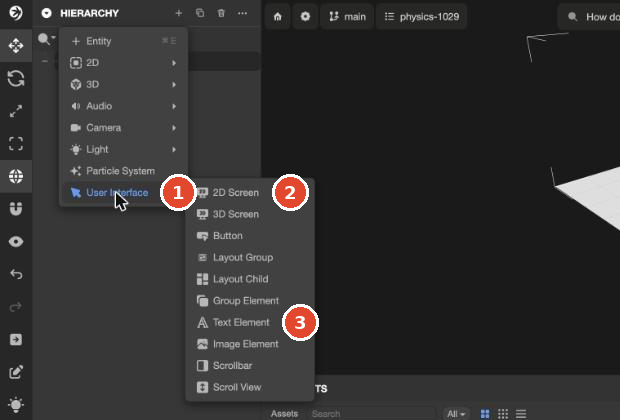
Text must be under a 2D Screen to stick to the screen. The SCREEN section of 2D Screen starts with Screen Space on, Ref Resolution 1280 × 720 and Scale Mode Blend. When the screen size changes, the text size scales relative to this reference. On a 1920 × 854 screen, it was drawn at 1.334× the reference. The calculation is explained in How on-screen text and buttons are structured.
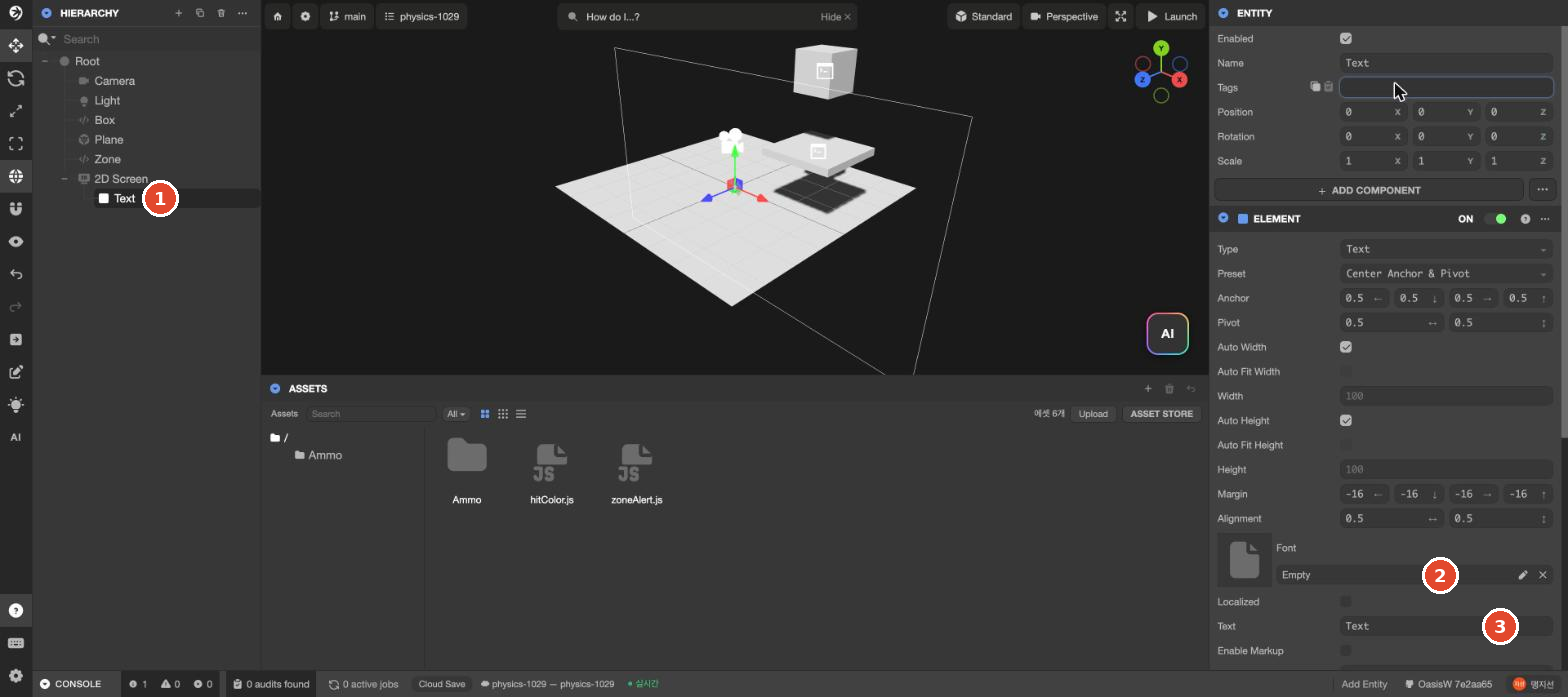
2. See why the text is invisible
When you select the new Text, the Text field in the ELEMENT section is Text, but Font is Empty. When we clicked Launch in this state, no text appeared on screen at all, and there was no error message. Without a font, there are no glyphs to draw.
3. Upload a font and add Korean characters
- Click Upload at the top right of ASSETS and choose a
.ttffile. In our tests, a folder with the same name as the file (NanumGothic) was created, containing two items: the source file (large A icon) and the font asset (Aa icon). - Click the font asset with the Aa icon. The FONT section appears on the right.
- Characters in the FONT section holds the list of characters this font draws. Initially it contains only Latin letters, digits and symbols (Range (hex)
0x20–0x7E). - Append the Korean characters your game uses to the end of the Characters field. Example: if the text is
점수(score) and목숨(lives), add점수목숨. - Click REGENERATE FONT ASSETS. The button changed to
REGENERATING FONT ASSETS...and returned within 5 seconds.
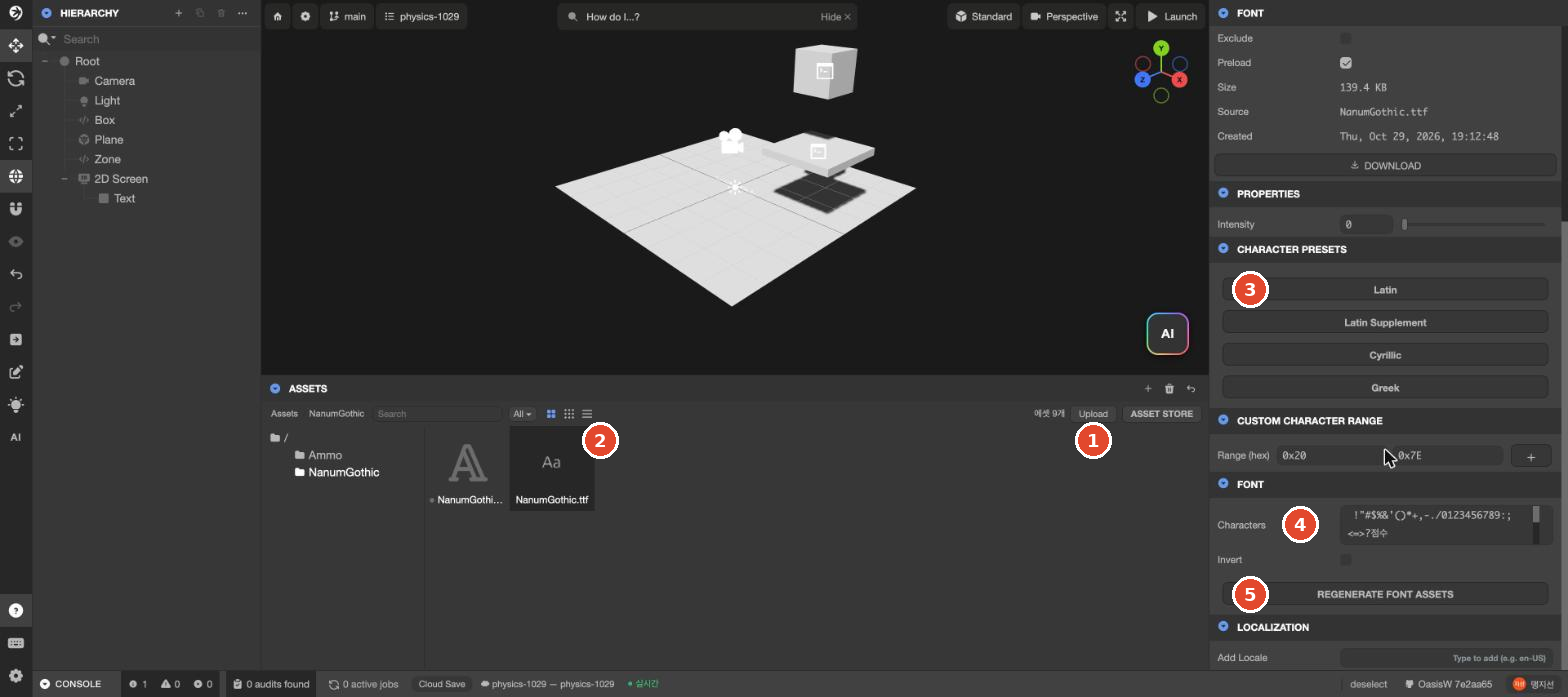
CHARACTER PRESETS has only Latin, Latin Supplement, Cyrillic and Greek; there is no Korean set. Enter Korean characters by hand as in step 4. Pending Test the size and time when adding the whole Korean range (0xAC00–0xD7A3) via CUSTOM CHARACTER RANGE
4. Assign the font and change the text
- Select
Textin HIERARCHY. - Drag the Aa font asset from ASSETS onto Font in the ELEMENT section.
Emptychanges to the font name. - Type the text to show in the Text field and press Enter.
- Check with ▶ Launch.
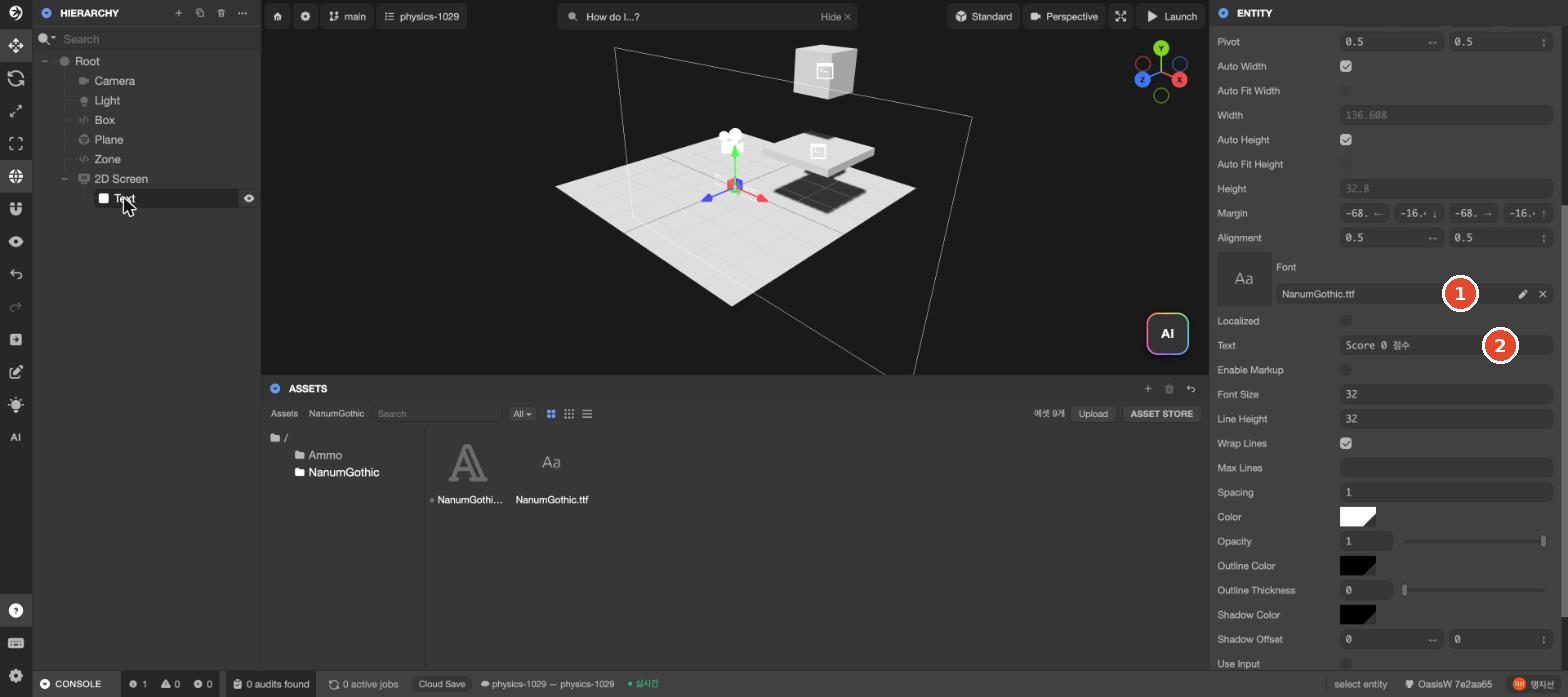

Score 0 점수 appears in the centerMissing characters are silently dropped
Characters you didn't add in step 3 disappear from the screen without even leaving a blank space. No error message appears. In our tests, before Korean was added, Score 0 점수 showed only as Score 0. When the text was changed during the game to 점수 10 목숨 (score 10 lives), only the missing 목숨 was dropped and 점수 10 appeared.

점수 10 목숨, but 목숨 was droppedIf a script changes the text during the game (score, time left, names, etc.), add every character that can appear in that text to Characters. Digits are included from the start.
Change the wording of existing text
If the text already exists, as in games made by the AI, find the entity that holds it in HIERARCHY and edit Text in the ELEMENT section. If you don't know the entity's name, try a likely name such as Text or Score in the HIERARCHY search box.
If you edited the Text field but the game still shows the original wording, a script is overwriting Text when the game starts. In that case the wording is stored in a script attribute. Find the text attribute in the SCRIPT section of the entity that holds the text (or the entity that runs the whole game) and change it. Attribute names differ from game to game. See Change script attribute values.
Let the AI do it
Example prompt:
Show "점수 0" at the top left of the screen, and increase the number by 1 every time a star is collected.
Use NanumGothic from ASSETS as the font, and add the Korean characters that appear on screen to the font's Characters.
Don't touch anything else.
Check whether the AI also fills in the font's Characters, and afterwards check in Launch that no Korean characters are missing. Pending Test Let the AI do it — same prompt 3 times