Code editor
The code editor is the screen where you open and edit script files. It opens in a new tab, separate from the editor. This page explains how to open it, its layout, saving, how added attributes show up in the editor, and how to find errors.
The tests on this page were done on 2026-10-29 in the oasisw.ai editor (macOS Chrome) with one new project. The example file is spin.js, created in Create and attach a new script. Unless noted otherwise, each behavior was checked once.
How to open it
| Where | What |
|---|---|
| Right panel, after selecting a script file in ASSETS | EDIT |
| Script row inside an entity's SCRIPT | Pencil icon |
| Left toolbar | Code Editor (Ctrl+I). See Top bar and left toolbar |
The first two methods open the code editor tab with that file already open. The code editor tab's URL starts with oasisw.ai/editor/code/….
Even with Code Editor in the editor settings changed to VS Code, double-clicking a script opened this code editor tab (tested 2026-10-30, 1 run). For now, expect to edit scripts in this editor (Scene settings (SETTINGS) and editor settings).
Edit directly in the Assets panel
You can edit short scripts without opening the code editor. This feature was checked on the version updated on the evening of 2026-10-29 (OasisW 7e2aa65).
- Click a script file once in ASSETS. A CODE field appears at the bottom of the SCRIPT panel on the right.
- Click inside the field and edit. Once you edit, a dot appears at the right of the CODE header, and Save and Revert below the field become clickable.
- Click Save. The panel's Size changes and Save is dimmed again. To discard your edits, click Revert.
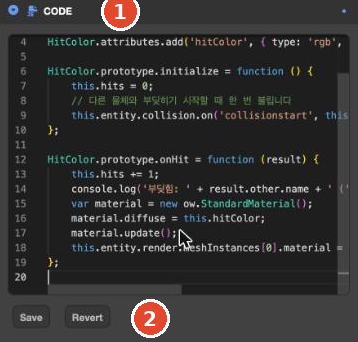
In our tests, scripts saved this way were used right away in the game you Launch (2 runs). If you're working with several files or need find and replace, use the code editor described below.
Layout
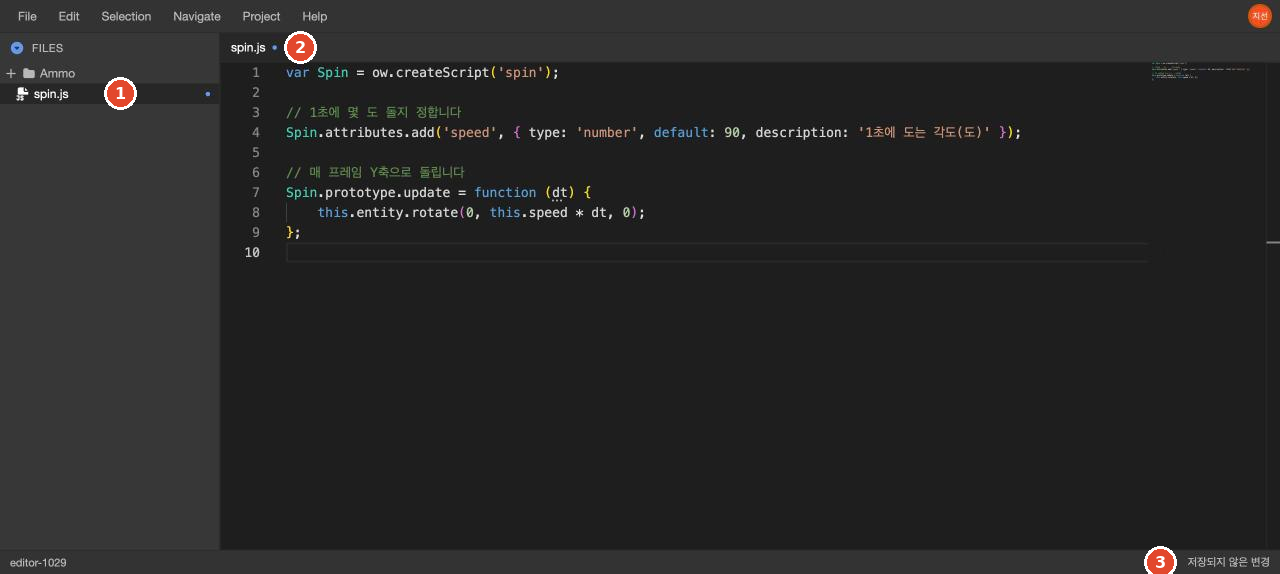
| Part | Contents |
|---|---|
| Top menu | File, Edit, Selection, Navigate, Project, Help |
| FILES | The project's asset folders and script files. Click a file to open it in a tab |
| File tabs | One per open file. If there are unsaved changes, a dot appears next to the name. The same dot appears next to the file name in the FILES list |
| Bottom bar | Project name on the left, save status on the right (저장됨 (Saved) or 저장되지 않은 변경 (Unsaved changes)) |
Save
Unlike the editor, the code editor applies changes only when you save. After editing, choose File → Save File. The right side of the bottom bar changes from 저장되지 않은 변경 to 저장됨, and the dot on the tab disappears.
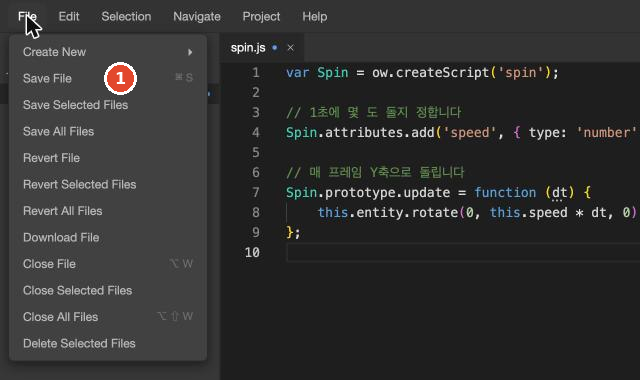
The menu shows ⌘ S as the shortcut for Save File. Pending Check whether pressing ⌘S on Mac / Ctrl+S on Windows by hand saves (⌘S sent by an automation tool did not save)
File menu
| Item | What it does |
|---|---|
| Create New ▸ | Create a new file or folder. The submenu has Script Asset, CSS Asset, HTML Asset, JSON Asset, Shader Asset, Text Asset and Folder |
| Save File / Save Selected Files / Save All Files | Save the current file / the selected files / all open files |
| Revert File / Revert Selected Files / Revert All Files | Discard unsaved changes. In our test, we typed a line at the end of the code so a blue dot (unsaved) appeared next to the tab name, then clicked Revert File: the typed line disappeared and so did the blue dot (1 run). When the file hasn't been changed yet, these items are dimmed |
| Download File | Download the file to your computer |
Close File (⌥ W) / Close Selected Files / Close All Files (⌥ ⇧ W) | Close tabs |
| Delete Selected Files | Delete the selected files |
Edit and Project menus
| Menu | Items |
|---|---|
| Edit | Undo (^Z), Redo (^⇧Z), Find (^F), Replace (^H), Find In Files (⌘⇧F), Toggle Comment (^/), Block Comment (⇧⌥A), Preferences |
| Project | Open Dashboard (project overview), Open Editor (the editor), Launch Primary Build (dimmed at the time of testing) |
Shortcuts are as shown on a Mac. Pending Check how shortcuts are shown on Windows
Added attributes appear in the editor right away
We added the two lines below to spin.js, changed update, and saved.
// When on, rotates in the opposite direction
Spin.attributes.add('reverse', { type: 'boolean', default: false, description: 'Rotate in reverse' });

Spin.prototype.update = function (dt) {
    var dir = this.reverse ? -1 : 1;
    this.entity.rotate(0, dir * this.speed * dt, 0);
};
Back in the editor tab, a reverse checkbox was already showing under Box's spin row. We didn't click PARSE or the parse button; we only saved (1 run).
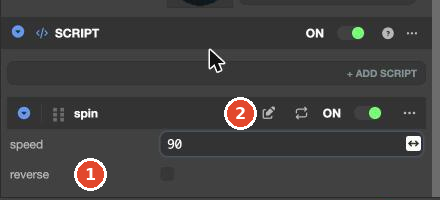
PARSE (in the script file panel) and the two-arrow (parse) button on the script row are for when you want to apply your changes to the editor and check them right after editing a script. Saving is often enough, so you won't need them often (confirmed by the development team). If a new attribute field doesn't appear after saving, try clicking one.
Find errors
In the code editor
Lines with syntax errors get a red wavy underline, and a red mark appears in the vertical bar at the far right. Hover over the underline to see the error. In our test, adding this is wrong as the last line showed ';' expected.

In the launched game
When we clicked Launch with the error still in the code, an error line appeared at the bottom of the game tab. The leading [spin.js:14] is the file name and line number. This script didn't run, so the box didn't rotate, but the rest of the scene displayed normally.
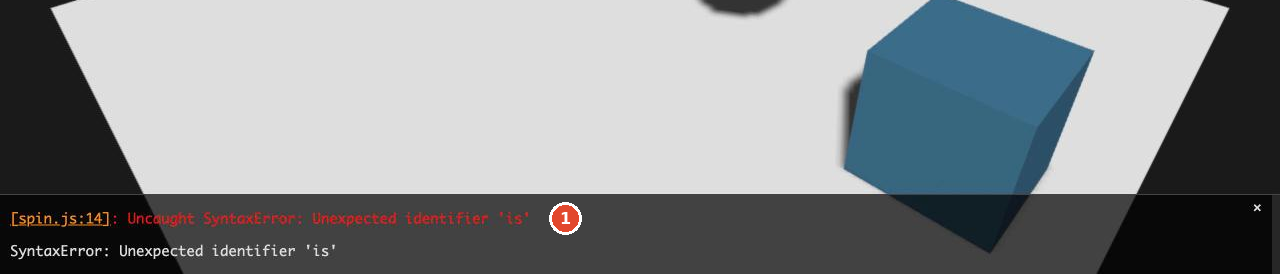
Clicking [spin.js:14] in the error line opened a URL showing only the file contents, not the code editor. To fix the error, go to that line of that file in the code editor. Close the error line with the ✕ on its right.
Let the AI do it
You can paste the error message as-is into the AI and ask it to fix it. Including the file name and line number narrows down where the AI needs to look. How to do this is in Send fix prompts.
When I launch, the error "[spin.js:14]: Uncaught SyntaxError: Unexpected identifier 'is'" appears at the bottom of the game. Fix only this error. Don't change any other behavior.Pending Send the prompt above 3 times on the current version and record the results
Check the result
- The right side of the code editor's bottom bar shows
저장됨(Saved). - There are no red underlines.
- There's no error line at the bottom of the game you Launch, and the behavior is visible.
Troubleshooting
| Symptom | Cause | Solution |
|---|---|---|
| You edited the code, but the game is unchanged | You didn't save, or the game tab is in its old state | Check the dot on the tab and the bottom bar, and save. Refresh the game tab or click Launch again |
| A new attribute field isn't in the editor | You didn't save, or there's a syntax error | Check the save status and look for red underlines |
| Clicking the file name in the error line shows nothing but bare code | That link opens only the file contents | Go to the same line of the same file in the code editor |