Define script attributes
A script attribute is a value exposed so it can be changed outside the code. A value declared as an attribute appears as a field in the entity's SCRIPT component, and each entity with the same script can have a different value. This page covers how to declare attributes in code. How to change existing attribute values is in Change script attribute values.
Declare an attribute
Write attributes.add(name, options) after createScript.
var PlayHit = ow.createScript('playHit');

PlayHit.attributes.add('slotName', {
    type: 'string',
    default: 'hit',
    description: 'Slot name in the SOUND component'
});
In code, read it as this.slotName. This code was run and confirmed in Add sound.
Options
| Option | Meaning |
|---|---|
type | The kind of value (table below). It determines what the field looks like |
default | The initial value. It goes into the field when the script is first attached |
title | The name shown on the field. If omitted, the attribute name is shown. Korean text works too |
description | Field description |
min, max | Number range. If set, a slider appears next to the number field |
array | If true, a list field holding multiple values. Set the count with Array Size, and delete items with the trash icon on each |
type
On 2026-10-29, we created a script declaring all the types below, attached it to an entity, and checked the editor fields and the values received in the launched game (1 run).
AttrTest.attributes.add('speed', { type: 'number', default: 3, title: 'Move speed', min: 0, max: 10 });
AttrTest.attributes.add('label', { type: 'string', default: 'Score' });
AttrTest.attributes.add('loop', { type: 'boolean', default: true });
AttrTest.attributes.add('tint', { type: 'rgba', default: [1, 0.5, 0, 1] });
AttrTest.attributes.add('offset', { type: 'vec3', default: [0, 1, 0] });
AttrTest.attributes.add('target', { type: 'entity' });
AttrTest.attributes.add('clip', { type: 'asset', assetType: 'audio' });
AttrTest.attributes.add('points', { type: 'number', array: true, default: [1, 2] });
AttrTest.attributes.add('ease', { type: 'curve' });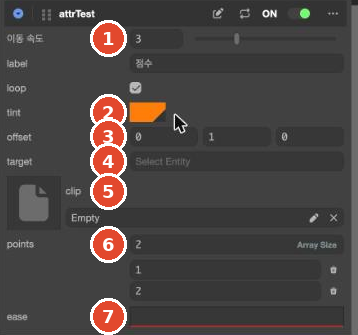
| type | Field | Value received in the game |
|---|---|---|
number | Number field. With min/max, a slider is added | 3 |
string | Text field | 'Score' |
boolean | Checkbox | true |
rgb, rgba | Color swatch | A color object. toString() gives #ff8000 |
vec2, vec3, vec4 | 2–4 number fields | A vector. [0, 1, 0] |
entity | Select Entity field. Drag and drop an entity onto it | null if empty |
asset | Asset field (Empty). Limit the kind with assetType | null if empty |
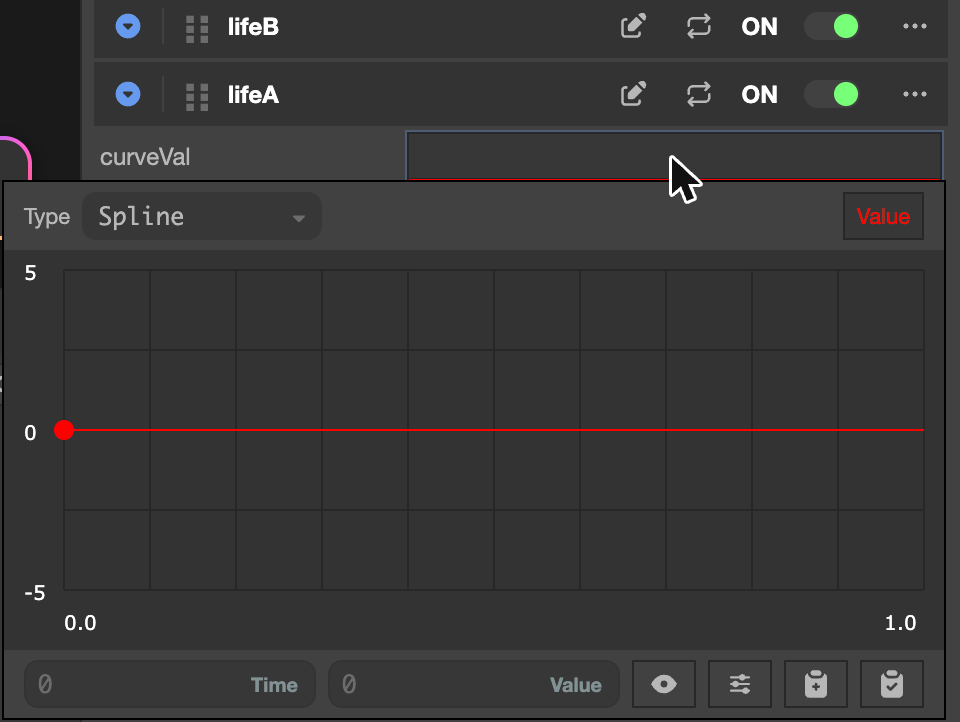
curve | Curve field (a strip with a red line). Click it to open the curve editor (below) | A curve object. With the initial curve, value(0.5) is 0 |
json | One field per schema entry, grouped under the attribute name | An object. Example: { speed: 2, label: 'hi' } |
Clicking a curve field opens the curve editor. At the top are Type (default Spline) and, on the right, the Value indicator (red); in the middle is a grid from -5 to 5 vertically and 0.0 to 1.0 horizontally. The initial curve is a single point at 0, 0 with a flat line. At the bottom are Time and Value fields for the selected point and four buttons (eye, settings, copy, paste) (tested 2026-10-30).
A json attribute lists its grouped entries in schema. In a test on 2026-10-30, with speed (number, default: 2) and label (string, default: 'hi') in schema, the editor fields showed 0 and an empty field, but the launched game used the defaults { speed: 2, label: 'hi' } (1 run). Even if the fields look empty, the code's default applies as long as you haven't changed them.
AttrTest.attributes.add('cfg', {
    type: 'json',
    schema: [
        { name: 'speed', type: 'number', default: 2 },
        { name: 'label', type: 'string', default: 'hi' }
    ]
});Update the fields: PARSE
When you add or change attributes and save the code, the attribute names appear in the script asset's SCRIPTS field. In our test, clicking Save made slotName appear under playHit right away (1 run).
If a new attribute still doesn't show in the entity's SCRIPT component after saving, select the script asset and click PARSE in the SCRIPTS header. It rereads the code and rebuilds the attribute list. Use it when you want to check right after editing a script.