Add and remove components
What an entity does is determined by its components. You add components with + ADD COMPONENT in the ENTITY panel and remove them from the menu in each component's header. This page explains how to add and remove components, and how to handle the Ammo module not found message that appears the first time you add a physics component.
The tests on this page were done in the oasisw.ai editor with one new project (macOS Chrome) on 2026-10-29. Unless noted otherwise, each action was tested once.
Before you start
- Select the entity you want to add a component to. The right panel switches to ENTITY.
- For how entities and components relate, see Projects, scenes, entities, components, and assets.
Do it in the editor
Add a component
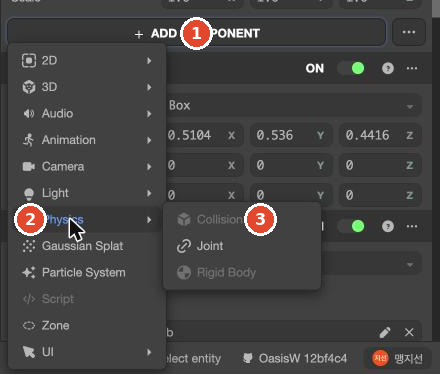
- In the ENTITY panel, click + ADD COMPONENT below the
Scalerow. A category menu opens. - Hover over a category to open its submenu, then click a component. Example: Physics → Collision.
- The new component appears right below + ADD COMPONENT, above any existing components.
Add Componentappears on the right side of the bottom bar.
| Category | Items (as checked) |
|---|---|
| 2D, 3D | Have submenus (items not yet documented). Primitive shape entities already have RENDER |
| Audio, Animation, Camera, Light | Sound, animation, camera, lighting. Have submenus |
| Physics | Collision, Joint, Rigid Body |
| Gaussian Splat, Particle System, Script, Zone | Added directly, with no submenu |
| UI | For on-screen text and buttons. Has a submenu |
Components already on the entity are grayed out in the menu and can't be clicked. You can't add the same component to one entity twice.
Ball in a game made with the AI)The first time you add a physics component
When we added Collision in a new project, a red-bordered box with Ammo module not found and an IMPORT AMMO button appeared below the component. This means the project doesn't have the module used for physics calculations yet.
- Click IMPORT AMMO.
- An
Ammofolder appears in ASSETS, and the red box disappears.
You only need to do this once per project. Projects where the AI made a game already have an Ammo folder that the AI added.
Change values
The fields of a new component are filled with default values. They aren't fitted to the entity's shape, so adjust them manually.
Disable and remove a component
Each component header has an ON switch, ? (help), and ⋯ (menu).
- To turn a component off temporarily, switch ON off. The component and its values stay.
- To remove it, click ⋯ → Remove Component. It's removed immediately, with no confirmation. To undo, press Ctrl+Z.
- From the same menu, Copy Component copies a component, and Paste Component on another entity pastes it. Paste Component is grayed out until you copy something.
- Select the entity to paste onto, then click ⋯ next to the ADD COMPONENT button to see Paste Component and Remove All Components. In a test on 2026-10-30, copying
Light's LIGHT and pasting it ontoZoneadded a LIGHT with the same values afterZone's COLLISION. A single Undo removes it.
Let the AI do it
When the AI makes a game, it adds the components it needs on its own. In a test on 2026-10-27, the work log included lines like ✓ Plane 물리(static) (✓ Plane physics (static)) and ✓ Ball ← 레시피 player_controller (Ball ← recipe player_controller), showing it added physics and scripts. To see what was added, select the entity and check the ENTITY panel.
Adding or removing a single component is faster by hand. When you ask the AI, include the entity name, the component name, and the values you want, and check the plan card to make sure it doesn't touch other entities. Pending Send a prompt to add a component 3 times and record the results
Check the result
- Check that the component appears in the ENTITY panel and that there's no red warning box.
- For physics components, check in the viewport that the collision volume (blue outline) matches the entity's shape.
- Check behavior by running the game with Launch. See Run with Launch.
Troubleshooting
| Symptom | Cause | Fix |
|---|---|---|
Ammo module not found appears below the component | The project doesn't have the physics module | Click IMPORT AMMO |
| A blue box appears around a round entity | Collision's Type is the default, Box | Change Type to match the entity's shape |
| A component is grayed out in the menu and can't be clicked | It's already attached | Find that component in the ENTITY panel and edit its values |