Debugging
This page explains how to find the cause when a script doesn't behave as expected. In OasisW, the game runs in a new tab, so you see most logs and errors in the browser developer tools of the game tab.
The tests on this page were done on 2026-10-29 in the oasisw.ai editor (version label OasisW 7e2aa65, macOS Chrome).
Where logs appear
| Location | What appears |
|---|---|
| Browser Console of the game tab | The script's console.log output and script errors. Each line ends with the script file and line number |
| CONSOLE at the bottom of the editor | Editor notifications (save failures, connection, etc.). The script's console.log output didn't appear here (4 launches) |
Do it in the editor
1. Open the browser Console
- Open the game tab with ▶ Launch.
- Open the developer tools in the game tab. In Chrome, press F12 or Ctrl+Shift+J (on Mac, Cmd+Option+J).
- Look at the Console tab. To watch the game again from the start, refresh the game tab. The developer tools stay open.
2. Log values
When you don't know what a value is at a given moment, add console.log, save, and refresh the game tab. In our test, a log added to a collision event appeared in the Console as Hit: Plane (#1) (Receive collision events).
console.log('Speed: ' + this.speed, 'Position: ' + this.entity.getPosition().toString());If you put it inside update, it prints every frame and floods the Console. Add a condition or put it inside an event function.
3. Read errors
If a script has an error, a red line appears in the Console. Click the file name and line number at the end of the line to open the code at that location. Below are the messages we got in a launched game on 2026-10-29 by deliberately making four common mistakes (1 run each). The game kept running despite the errors. So if "the screen shows up but something doesn't work," check the Console first.
| Mistake | Message received | Fix |
|---|---|---|
this.entity.collision.on(…) on an entity without Collision | Cannot read properties of undefined (reading 'on') | Add Collision to that entity, or move the script to an entity that has Collision |
Typo in a function name: applyImpulce | this.entity.rigidbody.applyImpulce is not a function | Fix the spelling (applyImpulse) |
Undeclared variable scoreLabel | scoreLabel is not defined | Check whether you meant an attribute like this.scoreLabel, or a variable from another file |
Entity looked up by a name that doesn't exist: findByName('Ball') | Cannot read properties of null (reading 'getPosition') | Match the actual name in HIERARCHY. In AI-generated games, names differ from one generation to the next |
Reading undefined as "no such component or property" and null as "looked for it but found nothing" is right most of the time.
4. Inspect the running game
You can type code directly into the Console to see the current state. In our test, the following code read an entity's position and whether a sound was playing.
ow.app.root.findByName('Box').getPosition().toString()
ow.app.root.findByName('Box').sound.slot('hit').isPlaying
Values you change here aren't kept in the editor.
5. Launch options
Hover over ▶ Launch to show the Profiler, Mini stats, Debug and Inspector checkboxes. At the time of testing, only Debug was on. With all four turned on, Launch looked like this.
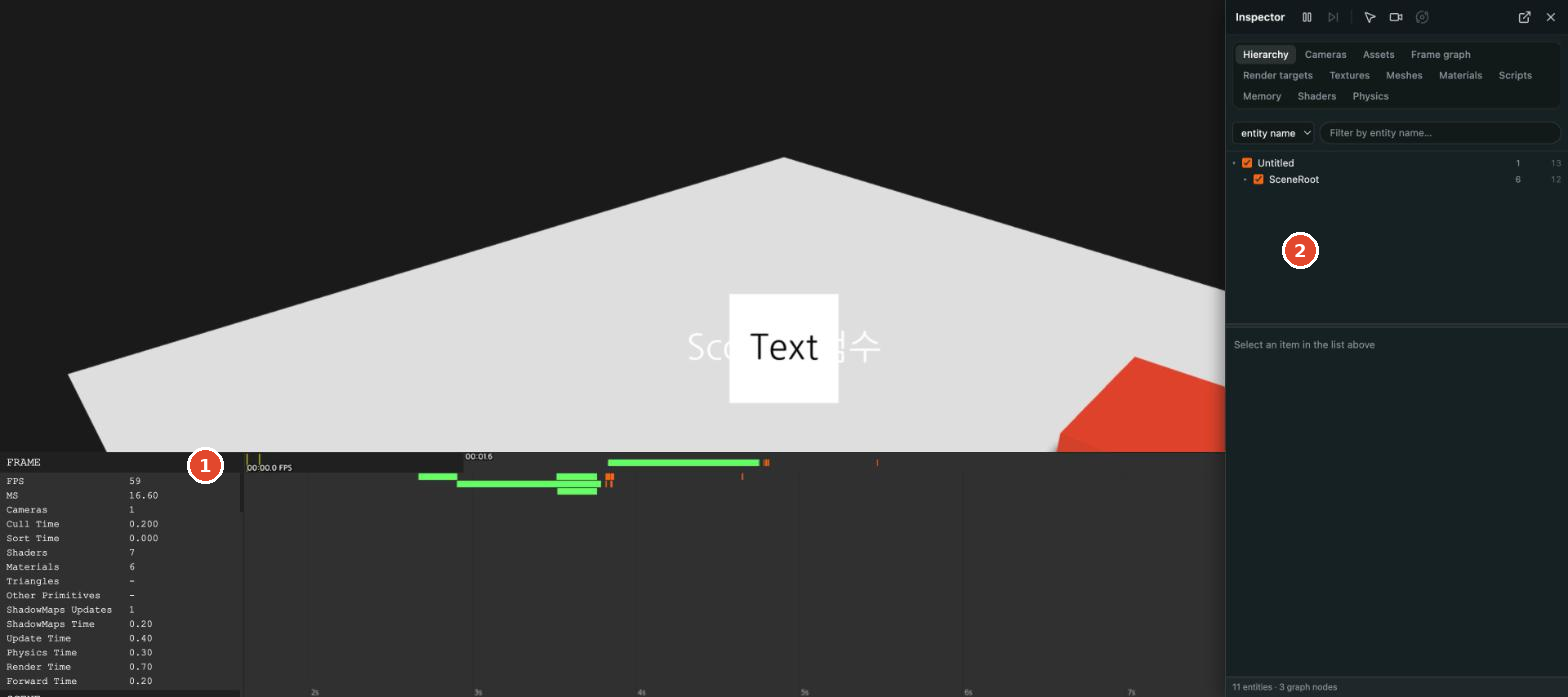
| Option | Use for debugging |
|---|---|
| Mini stats | A small table at the bottom left of the screen. Use it to see whether the game has slowed down (a Frame of 16.7 ms is about 60 frames per second) |
| Profiler | Use it to see where time goes: Update, Physics or Render |
| Inspector | Use it to see how many entities actually exist at runtime and what state they're in. Useful in games where scripts create and destroy entities |
| Debug | Runs with the engine's debug build. We recommend leaving it on |
A detailed description of the screen is in Run with Launch.
Let the AI do it
Finding causes is something the AI does well. Describe what you saw and what you want, and ask it to explain the cause first; this prevents fixes you didn't ask for.
When I launch, no sound plays when Box hits the floor. There are no errors in the browser Console.
Explain the cause first. Don't fix anything yet.
Have it fix the problem after you've checked the explanation (Send fix prompts). Pending Test "Let the AI do it": same prompt 3 times