Templates
A template saves an entity, its children, and its components as a single asset. When you place many copies of the same enemy or item, creating them from a template lets you edit the one template and apply the change to every copy (instance).
Templates and instances
Right-click an entity and open Template to see these four menu items (checked on 2026-10-29).
| Menu item | What it does |
|---|---|
| New Template | Creates a template asset from this entity and turns this entity into an instance of it |
| Apply to Template | Applies values changed on the instance to the template. The change spreads to other instances too |
| Unlink From Template | Breaks the link to the template and turns it back into a regular entity |
| Add Instance | Creates one more instance of the template |
On an entity that is not a template instance, Apply to Template and Unlink From Template are grayed out.
Tested: create a template
Results from one test on 2026-10-29 with Box (an entity with Collision, Rigid Body, Sound, and 2 scripts).
- In HIERARCHY, we right-clicked
Box→ Template → New Template. - A template asset named
Box(hexagon icon) appeared in the current folder of ASSETS. - The icon of
Boxin HIERARCHY changed to the template icon. - A TEMPLATE INSTANCE row appeared at the top of the ENTITY panel, showing the template name
Boxand No Overrides. This means the instance matches the template.
Tested: overrides and applying
Results from continuing on the same day, one run each.
- We turned off RENDER → Cast Shadows on the
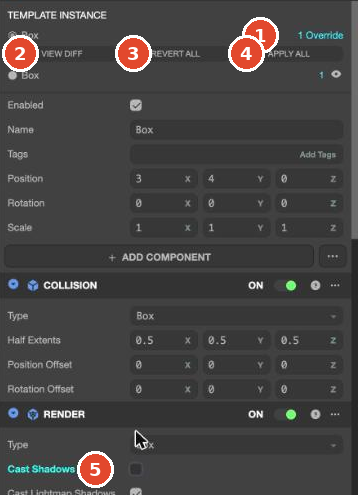
Boxinstance. The TEMPLATE INSTANCE row changed to 1 Override, and VIEW DIFF, REVERT ALL, and APPLY ALL buttons appeared below it. The changed field name (Cast Shadows) was shown in light blue. - Clicking REVERT ALL turned Cast Shadows back on and returned to No Overrides.
- Dragging the
Boxtemplate asset from ASSETS into the viewport created another instance with the same name,Box, where it was dropped. - Turning off Receive Shadows on the new instance and clicking APPLY ALL also turned off Receive Shadows on the original
Box. The change spread to every instance through the template.
Test: compare changed values and delete a template
We tried each of these once on 2026-10-30 with the template asset testcube from an uploaded testcube.glb. When you select this template asset, the TEMPLATE section on the right shows Root (testcube), Entities (2), and Components (render x1).
- We turned off Cast Shadows on the instance's child
TestCube. TEMPLATE INSTANCE on the top entitytestcubechanged to 1 Override, and a row for the changed child appeared below it (TestCube, change count1, eye icon). Changes made on children are collected on the top entity. - Clicking VIEW DIFF opened a two-column window over the viewport. The left side is TEMPLATE ASSET (the template's values), the right side is TEMPLATE INSTANCE (the instance's values). Under the entity name
TestCube, only the changed fields appear (Cast Shadows checked / unchecked), with a light-blue dot at the far right. The component is RENDER, but this window labeled it MODEL. Close it with Close. - Clicking REVERT ALL returned it to No Overrides.
- We deleted the template asset in ASSETS (YES in the confirmation
'testcube' 에셋을 삭제할까요?(Delete the 'testcube' asset?)). The instance entity stayed in the scene and remained visible. The TEMPLATE INSTANCE row showed only the deleted template's ID (cd19fcae-…) instead of its name, and the change count and buttons disappeared.

When to use templates
- When you place many entities with the same look and the same rules (stars, enemies, coins).
- When you use the same entity in several scenes. A template is an asset, so every scene in the project can use it.
In games the AI builds, the same 10 stars are often created separately without a template (Star1 to Star10). To change them all at once, let the AI make the change in bulk, or turn one into a template and replace the rest with instances. Pending Ask the AI to organize them into a template, 3 runs