Run with Launch
Click ▶ Launch to run the current scene in a new browser tab. The editor stays in the original tab, and your edits show up in the game only after you refresh the game tab.
Before you start
- The scene you want to run must be open. Check the scene name in the top bar (Create and switch scenes).
- You can click ▶ Launch with the AI GAME BUILDER panel open. The AI panel doesn't cover the button (tested on 2026-10-27, 2 runs).
- If the AI is working, wait until it finishes. While it's working, the AI panel's send button changes to 중단 (Stop).
Do it in the editor
Run the game
- Click ▶ Launch at the far right of the top bar. A new browser tab opens. The Controls list shows Ctrl+Enter (Cmd+Enter on Mac) as the Launch shortcut.
- For the first few seconds, the tab shows a black loading screen. When loading finishes, the game fills the tab.
- Click the game screen once. Before we clicked, the game didn't respond to key presses.
- Play the game to check it. The order to check things in is under "Check the result" below.
Run again after editing
After you edit the scene, manually or with the AI, reload the game tab that's already open with the browser's refresh. An open game tab keeps showing the state from when it was opened, so you won't see your edits unless you refresh. Clicking ▶ Launch again to open a new tab works the same way.
If you manually changed values in an entity's SCRIPT fields (script attributes), when the change took effect depended on the kind of value.
| Kind of value | Example | Observed |
|---|---|---|
| A value read continuously during the game | Top speed maxSpeed | Took effect on the first refresh (1 run) |
| A value read only once when the scene starts | Starting lives startLives | On the first refresh the game started with the old value; it took effect on the second refresh (2 of 2 runs, same when reverting) |
If you changed a starting value and it hasn't changed, refresh once more. In a test on 2026-10-29, after changing the script attribute speed, it took effect on the very first Launch (1 run). We haven't determined what causes the delayed updates. For how to change attribute values, see Change script attribute values.
Launch options: Profiler · Mini stats · Debug · Inspector
Hover over Launch to see four checkboxes (screen as of 2026-10-29; previously there were three).
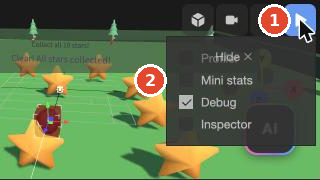
| Checkbox | Description |
|---|---|
| Profiler | Hovering shows "Enable the visual performance profiler in the launch page." A performance measurement view appears at the bottom of the game tab. On the left is a FRAME table (FPS, MS, Cameras, Shaders, Materials, Update Time, Physics Time, Render Time, and more), and on the right is a timeline graph. profile=true is added to the URL |
| Mini stats | A small performance table (Draw calls, Frame, CPU, GPU, VRAM) appears at the bottom left of the game screen. In our tests, Frame was 16.7 ms (about 60 frames per second). ministats=true is added to the URL |
| Debug | When on, ?debug=true is added to the end of the game tab's URL. When on, the engine's debug files are loaded; when off, the regular files are loaded (confirmed by the file names the browser downloaded). The error for using the script name move (Script name 'move' is reserved) appeared the same way in both cases. Whether some warnings are omitted with the regular files: Pending to be verified For details, see Debugging |
| Inspector | Hovering shows "Show the Inspector debug panel in the launched application." An Inspector panel opens on the right of the game tab, where you can view the running game's entities (Hierarchy), cameras, assets, textures, materials, scripts, memory, and physics on separate tabs. inspector=true is added to the URL |
The 2026-10-29 tests were done with only Debug on. During earlier tests, we once found Mini stats and Inspector turned on and turned them off. If the game screen looks different from what this manual describes, check these boxes first.
Let the AI do it
The AI runs the game itself while it works. However, this doesn't replace checking with ▶ Launch. Checking the running game remains a step for you.
What the AI does — Between steps, “AI가 게임 실행 확인 중…” (AI is checking the game run…) appears in a small view at the bottom left of the AI panel, and the work log gets lines like ✓ 게임 실행 2.5초 (Game run 2.5 s). The recorded run times were between 1.5 and 3 seconds. In these short runs, the AI appears to check roughly whether the game starts without errors and responds to input.
What the AI can't do — Play the game all the way through. Whether the win message appears at the right time once all stars are collected, or whether the camera keeps following the ball, doesn't show up in a few seconds of running. There's also a limit on how many times the AI can run the game within one prompt. When we built a game 7 times with the same prompt, 3 times the AI wrote that it "hit the run limit (9 runs) and couldn't finish checking the final behavior." In 1 run, the limit was recorded as 6.
So 자동 점검: 문제 없음 (Auto-check: no issues) in the AI's work report is not a sign that the work is done. When we built a game 7 times with the same prompt, one run that ended with “문제 없음” had a defect: the win message was showing right at the start and the score didn't go up. For how to read the report, see Read the last line and the auto-check.
You can ask the AI again to check all the way through. In one recorded case, we sent the prompt below to a run that couldn't finish the final check because of the run limit.
Please do the remaining checks. Run the game and confirm that it ends when all 10 stars are collected. Leave everything else as it is.In the one time we checked, the AI confirmed that collecting 10 stars wins the game, but then repeated the same check 3 more times and spent about 5 more minutes. For what to do when it loops like this, see When the AI stalls, stops short, or loops. Even after the AI says it checked, do "Check the result" below yourself.
Check the result
In the game tab, check in this order. If an earlier step fails, you can't check the later ones.
- Is everything visible? — Before playing, count whether the entities that should be there and on-screen text such as the score are visible. If a message saying the game is over is showing before you've done anything, that's a defect.
- Does it move? — Click the game screen, then hold a control key for about 2 seconds. If the game rolls things by applying force, a short press may barely move anything. Also check that the entity you control doesn't leave the screen.
- Do the rules work to the end? — Play through to check that the score goes up and that the game ends at its end condition (collecting everything, 0 lives, and so on).
Write down anything odd exactly as you saw it (for example, "When the ball touches a star, the star disappears but the count doesn't go up"). What you write becomes your fix request as-is. For how to send it, see Send fix prompts.
There have been 2 cases where the AI edited a shared script and changed the game in another scene of the same project. If you plan to keep using other scenes, run them with Launch too after AI work (Check what the AI changed).
Troubleshooting
| Symptom | Cause | Fix |
|---|---|---|
| The new tab stays black | It's still loading | Wait about 10 seconds. If it's still black, refresh the game tab |
| Nothing happens when you press keys | The game screen doesn't have focus | Click the game screen once, then hold a key for about 2 seconds |
| Pressing W A S D in the editor only moves the view | In the editor tab, these are viewport camera keys | Switch to the game tab to play |
| It was supposedly fixed, but the game is unchanged | The game tab shows the state from before the fix | Refresh the game tab |
| You changed a starting value (such as starting lives), but it hasn't changed | Values read once at start have sometimes taken effect late | Refresh once more |
| The game screen looks different from what the manual describes | A launch option may be on | Hover over ▶ Launch and check the Mini stats · Debug · Inspector boxes |
For more symptoms, see Troubleshooting by symptom.