Create and attach a new script
A script is a JavaScript file that adds behavior to an entity. This page walks through the whole process from start to finish: create a new script file, add a short piece of code, attach it to an entity, and check it with Launch. The example is a spin script that rotates a box 90 degrees per second.
The tests on this page were done on 2026-10-29 in the oasisw.ai editor (macOS Chrome) with one new project. Unless noted otherwise, each behavior was checked once.
Before you start
- The entity you'll attach the script to must be in the scene. This page uses a
Boxentity. How to create one is in Create, duplicate, and delete entities. - Script files are shared by every scene in the project. Attachment information (which entity the script is attached to, and attribute values) is separate for each scene.
1Create a script file
- Click + in the ASSETS panel header and choose Script.
- An
Enter script filename:field opens. Typespinand press Enter. Typing the.jsas well, as inlifeTest.js, created a file with that name too (2026-10-30). spin.jsappears in ASSETS.
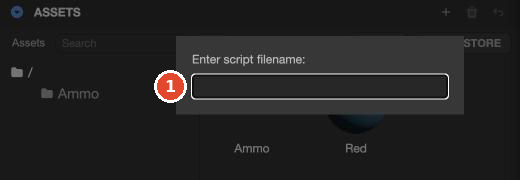
A new file already contains default code with initialize and update. The comments in the default code are in Korean.
2View file information
Click spin.js once in ASSETS, and the right panel changes to SCRIPT.
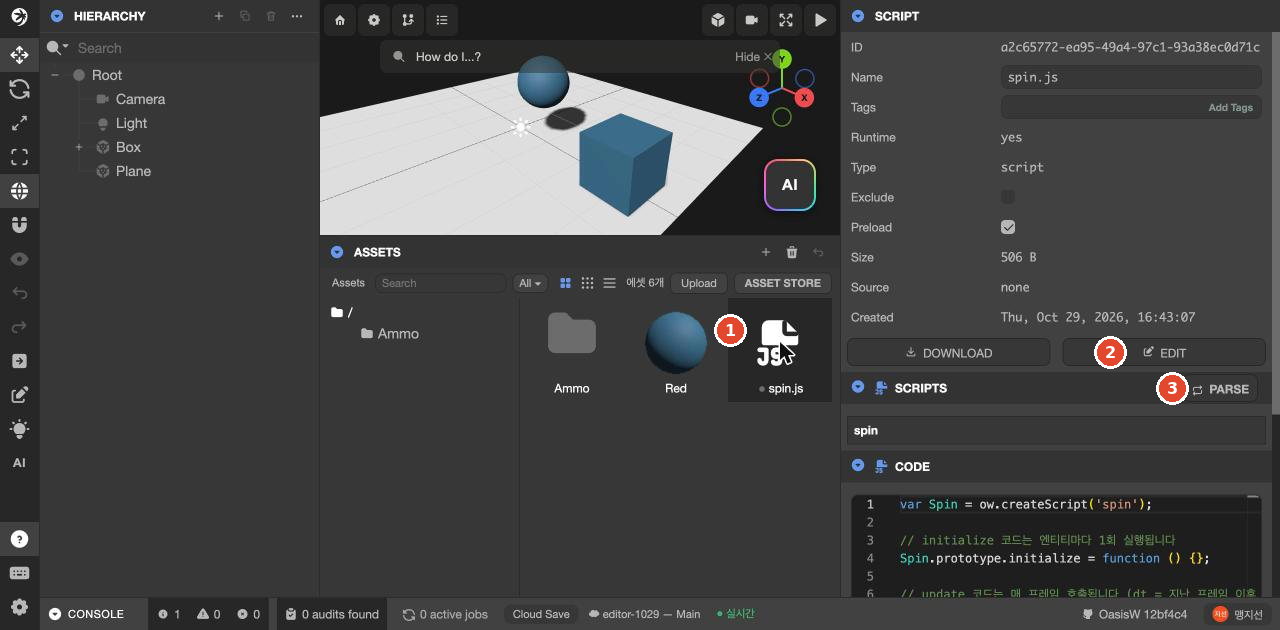
| Field | Meaning |
|---|---|
| Name, Size, Created | File name, size, creation time |
| DOWNLOAD | Download the file to your computer |
| EDIT | Open the code editor in a new tab |
| SCRIPTS | The script names defined in this file. Here, spin |
| CODE | The code. Starting with version OasisW 7e2aa65, you can edit it directly in this field and save with Save (see Code editor) |
The file name (spin.js) and the script name (spin) are different. When you attach a script to an entity, you choose the script name. The script name is set by ow.createScript('spin') on the first line of code.
3Add code
- Click EDIT. The code editor opens in a new tab.
- Delete all the default code and paste the code below.
- Save with File → Save File. When the bottom right shows
저장됨(Saved), the file is saved.
var Spin = ow.createScript('spin');

// Sets how many degrees to rotate per second
Spin.attributes.add('speed', { type: 'number', default: 90, description: 'Degrees to rotate per second' });

// Rotates around the Y axis every frame
Spin.prototype.update = function (dt) {
    this.entity.rotate(0, this.speed * dt, 0);
};| Line | Meaning |
|---|---|
ow.createScript('spin') | Defines a script named spin |
attributes.add('speed', …) | Creates a value speed that you can change in the editor. The initial value is 90 |
update(dt) | Runs every frame. dt is the time (in seconds) since the last frame |
this.entity.rotate(…) | Rotates the entity the script is attached to |
The editor screen and how to save are described in detail in Code editor.
4Attach it to an entity
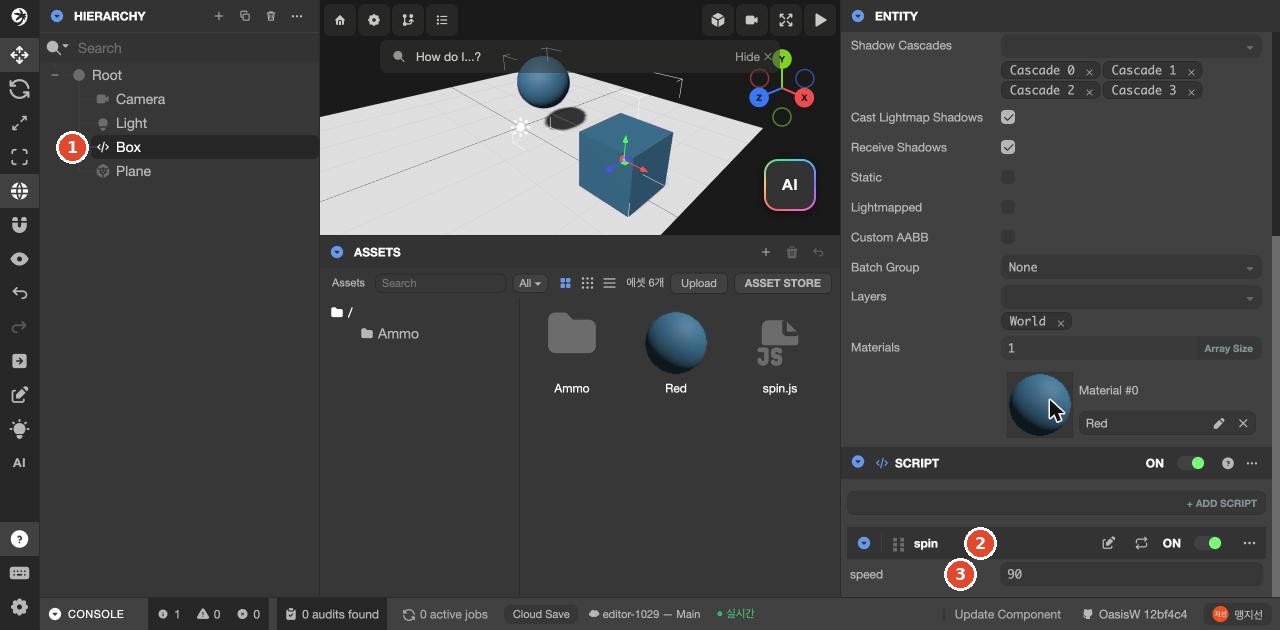
- Go back to the editor tab and select
Boxin HIERARCHY. - Click + ADD COMPONENT at the bottom of the ENTITY panel and choose Script. A SCRIPT component is added.
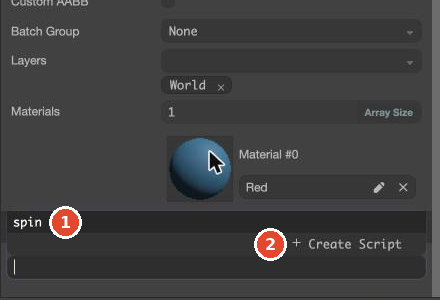
- Click + ADD SCRIPT inside SCRIPT. A list of the project's script names and + Create Script appear.
- Choose
spin.
Once attached, the Box icon in HIERARCHY changes to </>, and a spin row and a speed field (90) appear in SCRIPT.
A script that's already attached didn't appear again in the + ADD SCRIPT list.
Create and attach in one step
Type a name that doesn't exist yet (for example, bounce) in the + ADD SCRIPT field and click + Create Script: a bounce.js file was created in ASSETS and attached to the selected entity right away. The file contains the same default code as in step 1. If you've already picked the entity, this is the faster way.
5Check with Launch
Click Launch at the right of the top bar. In the new tab, the box starts rotating around the Y axis. In our test, it rotated 22.5 degrees every 0.25 seconds, that is, 90 degrees per second. Changing the speed field changes the rotation speed. How to change values is in Change script attribute values.
Detach a script and delete the file
- Detach: in SCRIPT, click ⋯ on the script row → Remove Script. The script is removed from that entity only; the file remains.
- Delete the file: select the file in ASSETS and click the trash icon in the header. A confirmation dialog,
'bounce.js' 에셋을 삭제할까요?(Delete the asset 'bounce.js'?), appears; click YES to delete it. Unlike deleting an entity, this has a confirmation dialog.
Deleting a script file that is attached to an entity doesn't remove the script row from the entity's SCRIPT component. In a test on 2026-10-30, the row stayed, 스크립트 에셋을 찾을 수 없습니다 (삭제됐거나 파싱 전) (Script asset not found (deleted or not yet parsed)) appeared under it, and the pencil (edit) and two-arrow (parse) icons disappeared. Launch ran without errors, but the script didn't run (1 run). After deleting the file, remove the leftover row with ⋯ → Remove Script.
Let the AI do it
Instead of writing code yourself, you can ask the AI something like "Make the box keep spinning in place." The AI creates the script and attaches it as well. Scripts you create and scripts the AI creates appear the same way in ASSETS and in the SCRIPT component. How to send prompts is in Open the AI panel and send a prompt.
Pending Send the prompt above 3 times on the current version and record the resulting script names and the entities they were attached to
Check the result
- The script file is in ASSETS.
- The entity's SCRIPT has the script row and attribute fields.
- The behavior is visible in the game you Launch.
Troubleshooting
| Symptom | Cause | Solution |
|---|---|---|
| The script isn't in the + ADD SCRIPT list | It's already attached to this entity, or the createScript name in the code is different | Scroll down inside SCRIPT, and check the script name in the file's SCRIPTS field |
| Attribute fields don't appear | The code wasn't saved | Check that the bottom right of the code editor shows 저장됨 (Saved) |
| Nothing moves after Launch | The code has an error, or the script is turned off | Check the error line at the bottom of the game tab (see Code editor). Check ON on the script row and on the SCRIPT component |