Get models from the Asset Store
The Asset Store is a collection of 3D models, 2D images, and animations provided by OasisW. Find an item inside the editor and click IMPORT to add it to the current project's ASSETS; drag it into the viewport to create an entity in the scene. This page explains how to find and import items from the store, how to place an imported model in the scene, and how to have the AI use store models.
The tests on this page were done in the oasisw.ai editor on 2026-10-26 to 2026-10-29. The store screen changed during that period (TYPES was added to the left list).
Before you start
- Open a scene in the editor. How to open a project is covered in Create a project and open the editor.
- All store assets are licensed CC0. You can use them in your games without attribution. Each item's detail view also shows this in the License field.
Do it in the editor
1. Open the store
- In the button row of the ASSETS panel at the bottom, click ASSET STORE. If the panel is narrow, the button wraps to a second row. You can click it with the AI panel open.
- The ASSET STORE window opens in the middle of the screen. To close it, click ✕ in the top-right corner.
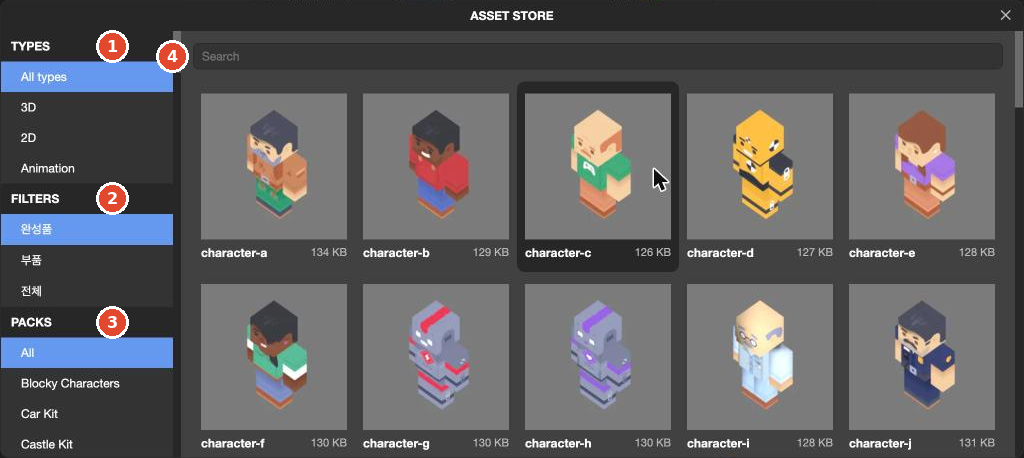
2. Find an item
Narrow the results with the three groups on the left of the window and the Search box at the top.
| Where | Options | Meaning |
|---|---|---|
| TYPES | All types, 3D, 2D, Animation | Asset type |
| FILTERS | 완성품 (Complete; selected by default), 부품 (Parts), 전체 (All) | 완성품 are models you use as they are, such as characters; 부품 are pieces for assembly, such as bolts and panels |
| PACKS | All and pack names (dozens, such as Platformer Kit, Pirate Kit, Mini Forest) | A set of assets made as one collection. Assets in the same pack match each other in style |
| Search | Type a name | Shows every item whose name contains what you type |
Each item shows its name and size (17.6 KB) underneath. Animations show their length (1.33 s) instead of size. Click Load More at the end of the list to load more.
Search matches any part of the name. Searching for star under 전체 returned several star items along with star-outline, coin-star, jump-start, and stairs-…. Assets with the same name exist separately in different packs, so check Pack in the detail view before you choose.
3. View details
Click an item and the same window switches to the detail view. Click ← in the top-left corner to return to the list.
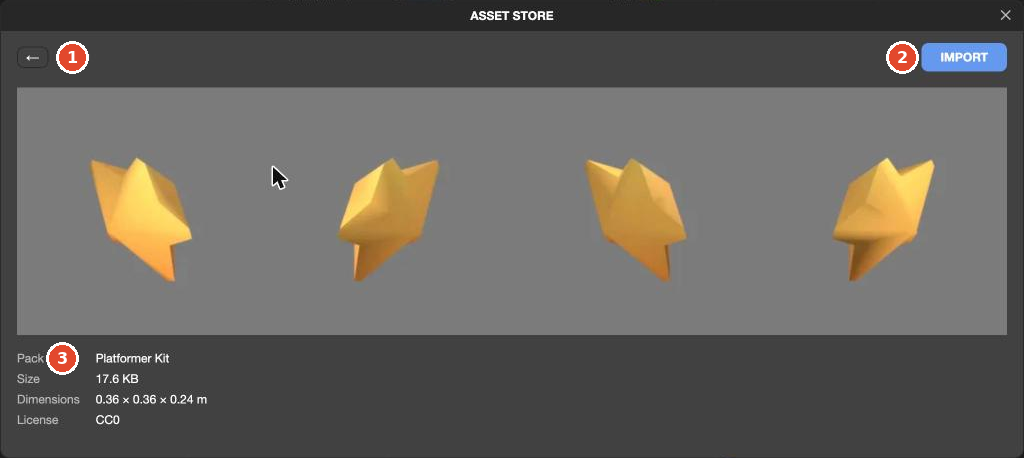
| Field | Example (star) | Use |
|---|---|---|
| Preview | The model seen from several angles | Check the shape |
| Pack | Platformer Kit | Imported files go into a folder with this name |
| Size | 17.6 KB | File size |
| Dimensions | 0.36 × 0.36 × 0.24 m | Actual size when placed in the scene (width × height × depth) |
| License | CC0 | Terms of use |
Check Dimensions in advance. Store models vary in size. star is small at 0.36 m, and in one run where the AI built stars from this model, the stars were hard to see on screen (2026-10-26, 1 of 3 runs).
4. Import
- Click IMPORT in the top-right corner of the detail view.
- A
Storefolder appears in ASSETS, and the file goes into a folder named after the pack inside it. Example:Store›Pirate Kit›cannon-ball.glb. 3D models are.glbfiles. - A model comes in as a single
.glbcontainer asset. Unlike a.glbyou upload yourself, no separate material or texture assets are created (2026-10-30,conefromCar Kit). Imported assets get a tag such asstore:car-kit/cone.
Once during an import, a message saying the server connection was lost and restored appeared in the bottom bar for a few seconds (1 run). It recovered on its own after a short wait.
5. Place it in the scene
- Find the imported
.glbfile in ASSETS. Click the path bar at the top (Assets›Store›Pirate Kit) to move between folders. - Drag the file into the viewport.
- An entity with the same name as the file (
cannon-ball) appears at the bottom of HIERARCHY.
In one test on 2026-10-29, the entity appeared on the ground where it was dropped (Position Y was 0), and Scale was 1. The ENTITY panel on the right showed a MODEL (LEGACY) component with cannon-ball.glb in the Model field. To change position and size, see Move, rotate, and scale entities.
Imported models have no collision or scripts. To make one roll like a ball or be collected like a star, you need to add more components. To change only the look of an existing entity to a store model, letting the AI do it, as described below, is faster.
Let the AI do it
When the AI uses the store on its own
While building a game, the AI sometimes imports the models it needs from the store on its own. When building a star-collecting game, the AI made the stars from the store's star model in 3 of 3 runs on 2026-10-26 and 1 of 2 runs on 2026-10-27. In this case too, a Store folder appears in ASSETS. The work log shows lines like ✓ Star1 → star.
If you want to decide which model is used, say so in the prompt. If you don't, it can differ from run to run.
Ask the AI to switch to a model you imported
To have the AI switch to a model you imported from the store yourself, include the name of the entity to change, the name of the imported model, and what to leave as is. We sent the prompt below 5 times, and all 5 times the ball was changed to the cannonball model (2026-10-26, 3 runs; 2026-10-27, 2 runs).
Change the look of the ball (Ball) to the cannon-ball model I just imported from the Asset Store. Keep the arrow-key rolling controls and the star-collecting rules as they are.The plan card stated the scope of the change, for example: "Keep the Ball entity's name, position, controls, and physics as they are, and replace only the displayed shape with the store's pirate-kit/cannon-ball model." How it made the change varied by run. In some runs it added a model child entity under Ball and hid the original sphere; in others it changed the shape of Ball itself and resized its collision to fit the model.
Check the result
- Check that the imported file is in the
Storefolder in ASSETS. - If you placed it in the scene, select the entity in HIERARCHY and check its size and position in the viewport. If it is too small or too large, change
Scale. - If you let the AI do it, run the game with Launch and check that the look changed and that the controls and rules are unchanged. How to run it is covered in Run with Launch.
Delete an imported model
When you delete an imported model asset from ASSETS, a confirmation appears: 'cone.glb' 에셋을 삭제할까요? (Delete the 'cone.glb' asset?), with NO selected by default. Here is what happened when we deleted cone.glb while the scene was using it, on 2026-10-30 (1 run).
- Both entities made from this model disappeared from the viewport.
- The entities stayed in HIERARCHY, and the Model field of MODEL (LEGACY) changed to
Missing. - Undo (Ctrl+Z) on the toolbar did not bring the asset back.
Before deleting, right-click the asset → References ▸ to see whether any entities use it (Asset types). To use the model again, import it from the store again and put it in the Model field.
Next steps
- Make your first game, step 5 — follow the process of replacing the ball with a store model from the start.
- Projects, scenes, entities, components, and assets — explains where imported files live in the project.
- Principles for writing prompts
- Check what the AI changed