Lights
Lights illuminate the scene. A new scene has one Light entity with a LIGHT component attached. This page explains how to choose a light type and change brightness, color, direction, and shadows.
Field names and defaults were read from a new scene in the oasisw.ai editor (version shown as OasisW 7e2aa65) on 2026-10-29.
Before you start
- In a new scene,
LighthasPosition0, 0, 0andRotation45, 30, 0. - To create a new light, click HIERARCHY + → Light → Directional Light, Omni Light, or Spot Light. The new entity is created as a child of the currently selected entity. To put it directly under the scene, select
Rootfirst.
Light types
Choose in Type. The default is Directional.
| Type | How it lights | Values that matter |
|---|---|---|
Directional | Lights the whole scene evenly from one direction, like the sun | Rotation only. Position has no effect on the light |
Spot | Lights a cone from a single point, like a flashlight | Position, Rotation, Range (8), Inner Cone Angle (40), Outer Cone Angle (45) |
Omni | Lights in all directions from a single point, like a light bulb | Position, Range (8) |
Spot and Omni also have Falloff Mode (Linear, Inverse Squared: how the light dims with distance) and a Cookie field that shapes the light with an image (Texture for Spot, Cubemap for Omni). A newly created Omni Light had Cast Shadows off (checked on 2026-10-29).
Do it in the editor
Change brightness and color
- Select
Lightin HIERARCHY. - Change Intensity (default
1) in the LIGHT fields. Higher numbers are brighter. - Click the Color swatch (default white) and choose a color.
Change the light direction
For Directional, the entity's Rotation is the light direction. Rotate it with the rotate gizmo (2) in the viewport or enter numbers in the Rotation field. Shadow direction and surface brightness change with it.
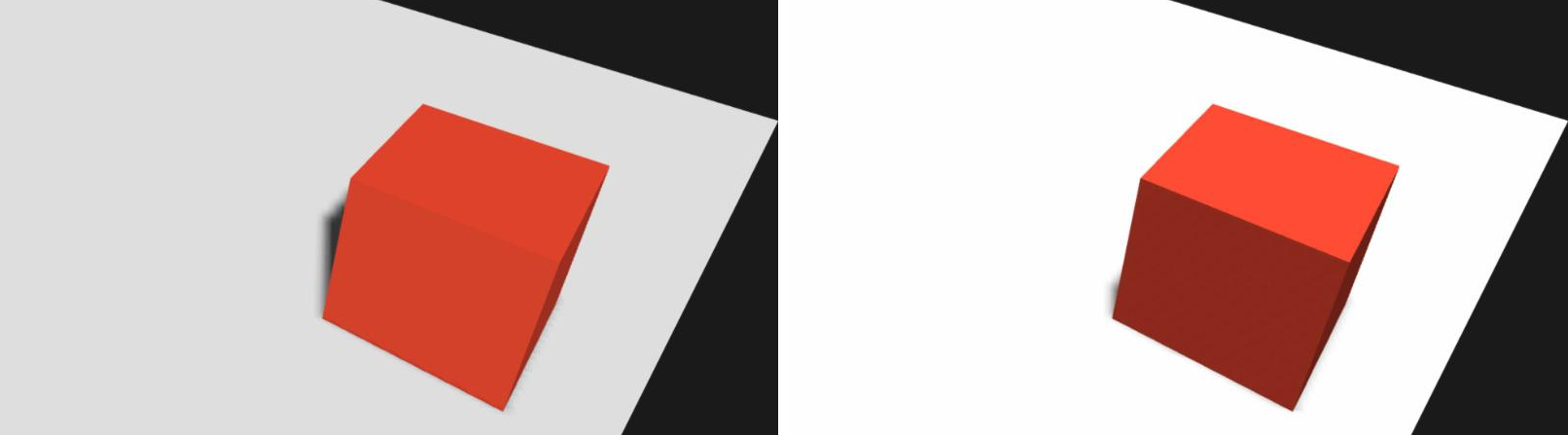
Rotation 45, 30, 0 (default); right: 15, 30, 0. The angle of the incoming light changed, so the brightness of the floor and box faces and the shadow position differ (2026-10-29 Launch)Shadows
| Field | Default | Meaning |
|---|---|---|
| Cast Shadows | On | Whether this light casts shadows |
| Shadow Update Mode | Realtime | Redraws shadows every frame. Once draws them only once |
| Resolution | 1024 x 1024 | Resolution of the shadow map (16 x 16 to 4096 x 4096). Higher is sharper and heavier |
| Cascades / Distance | 1 / 16 | Number of distance splits for Directional shadows, and the distance up to which shadows are drawn |
| Shadow Intensity | 1 | Shadow darkness |
| Shadow Type | Shadow Map PCF 3x3 | How shadow edges are processed. PCSS (Soft Shadows) gives soft shadows |
| Shadow Bias / Normal Offset Bias | 0.05 / 0.05 | Adjust when striped shadows appear on surfaces |
For shadows to appear, Receive Shadows must be on in RENDER on the receiving entity, and Cast Shadows must be on for the casting entity (Render component).
Other fields
| Field | Default | Meaning |
|---|---|---|
| Static, Bake Lightmap, Bake Direction, Bake Samples, Bake Area | Off, Off, On, 1, 0 | Fields used for lightmap baking (Bake lighting) |
| Affect Lightmapped / Affect Dynamic / Affect Specularity | Off / On / On | Whether the light affects baked objects, moving objects, and specular highlights |
| Layers | World | Layers this light illuminates |
Let the AI do it
If you know the exact values, doing it by hand is faster. Let the AI do it when you want to change several values together, such as "a sunset mood." Include the name of the light to change and what to leave as is.
Change the Light entity to an orange sunset glow, and lower its angle so shadows fall long.
Don't create or delete any lights. Don't touch anything other than what I asked for.
In tests on the contest editor, there was a case where the AI replaced the lighting without being asked (Check what the AI changed). When it finishes, check that no lights were added to or removed from HIERARCHY. Pending Test Let the AI do it — same prompt, 3 runs
Check the result
The light changes immediately in the viewport too, but check how it looks from the game camera with ▶ Launch. The editor viewport uses the editor camera settings (the EDITOR group), so color processing may differ from the game.