Change an entity's color
An entity's color is determined not by the entity but by the material attached to it. To change the color, change the material's DIFFUSE → Color, or attach a material with a different color to the entity. This page explains how to create and attach a material, how to change its color, and what happens when several entities use the same material.
The tests on this page were done on 2026-10-29 in the oasisw.ai editor (Chrome on macOS). Manual steps were tested once each in a new project, editor-1029; AI-created materials were checked in the tut-1027-3 project.
Before you start
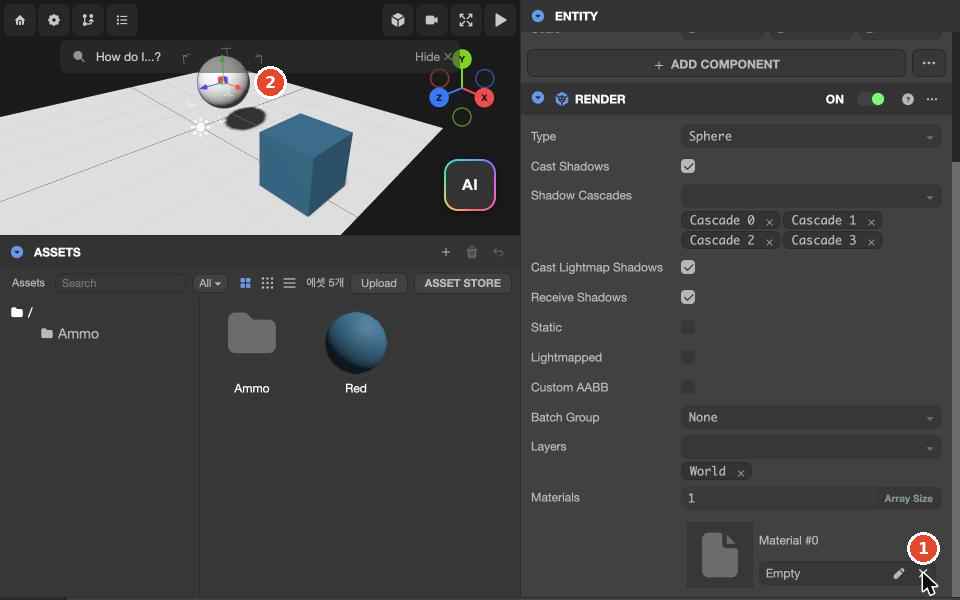
- A newly created shape entity (3D → Box, etc.) has no material. The Material #0 field of the RENDER component is
Empty, and the entity appears white. - In games built with the AI, the materials the AI created are in the
Materialsfolder in ASSETS. Read "Materials the AI creates" below first.
Do it in the editor
1. Create a material
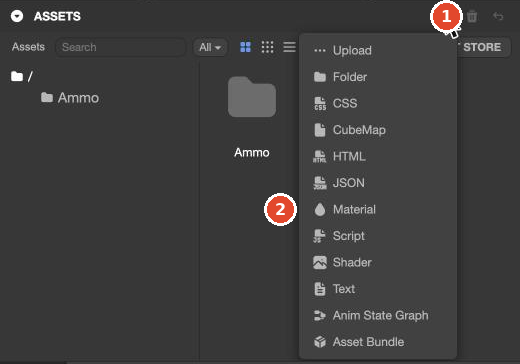
- Click + in the title bar of the ASSETS panel.
- Click Material in the menu.
New Materialappears in the currently open folder. - Click
New Materialand the right panel switches to MATERIAL. Enter a recognizable name in the Name field and press Enter.
2. Set the color
- With the material selected, scroll down the right panel and click DIFFUSE to expand it.
- Click the color swatch in the Color field. The color picker opens.
- Click in the color area, or enter values from 0 to 255 in the
r,g,bfields, or a hex value (for example,E63946) in the#field, and press Enter. - Press Esc to close the color picker. The material's preview sphere in ASSETS changes to the same color.
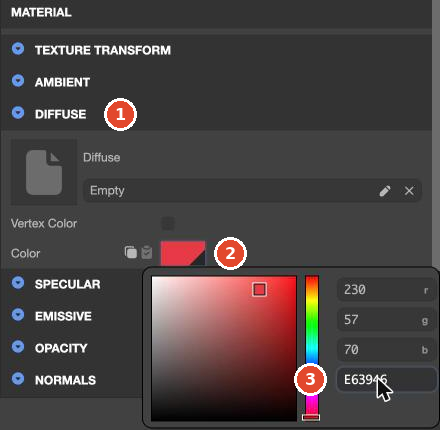
The Diffuse field under DIFFUSE is where you put an image (texture). Leave it empty if you are only changing the color.
3. Attach it to an entity
There are two ways. Each was checked once.
- Drag and drop: Select the entity and drag the material from ASSETS onto the Material #0 field under RENDER → Materials.
- Pick mode: Click the pencil icon in the Material #0 field.
에셋 패널에서 고를 에셋을 누르세요 — Esc로 취소(Click the asset to pick in the asset panel — Esc to cancel) appears over the viewport, and ASSETS is filtered to show only materials. Click the material to attach.
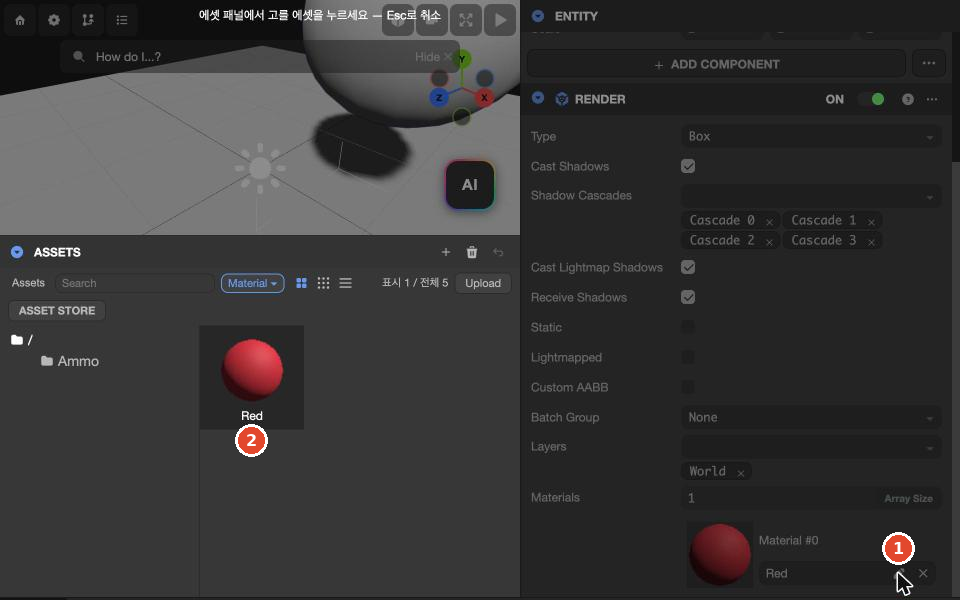
Once attached, the field shows the material name and the entity's color changes in the viewport. Update Component appears at the right of the bottom bar.
Entities that share a material change together
A material is a single asset in the project, and several entities can attach the same material. If you change that material's color, every entity that uses it changes.
In our test, we attached the same material, Red, to a box and a sphere and changed Color to 457B9D (blue); both turned blue (1 run). The material name stayed Red. On 2026-10-30, Box and another entity using the material Orange changed to 3060FF together, and entities in another scene of the same project also appeared blue. This is because the project, not the scene, shares materials (What's per scene and what the project shares).
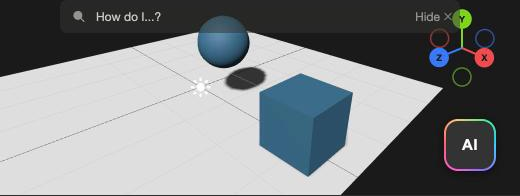
To give just one entity a different color, create a new material and attach it to that entity only. If you name materials by purpose (PlayerBall, Ground, etc.) rather than by color, the name and color won't drift apart when you change the color later.
Materials the AI creates
The AI creates one material per color, puts it in the Materials folder, and names it Color + the hex color value, such as Color 2F80ED (tut-1027-3, created 2026-10-27). In tests on a previous version of the editor, entities with the same color shared the same material.
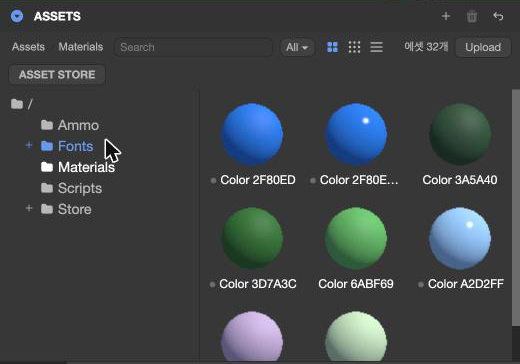
So in an AI-built game, changing a material's color by hand can also change other entities that had the same color. After that, the color value in the name no longer matches the actual color. Before changing it, right-click the material in ASSETS → References ▸. It lists the entities that use the material; click a name to select that entity in HIERARCHY (2026-10-30, 1 run).
A small gray dot in front of the name appears to mark assets that are not yet attached to any entity. A new material had the dot, and it disappeared after the material was attached to an entity (1 run).
Let the AI do it
Changing one entity's color is faster by hand. It takes a few seconds and uses no credits. When you want to change the color of several entities by a rule (for example, change color as the score goes up), or need to separate an entity's material from other entities, you can let the AI do it. Include the entity name, the color you want, and an instruction to keep other entities' colors as they are.
In a test on 2026-10-29, we sent "Change Ball's color to red. Leave everything else as it is." The AI proposed a plan to change only Ball's model material to #d62828 and leave everything else as is. In this test we clicked 아니오 (No) on the plan card, so we did not check the result. Pending Send the color-change prompt 3 times and record the results
Check the result
- Check that the entity's color changed in the viewport.
- Check that other entities using the same material didn't change too.
- Run with Launch and check that the color is the same in the game. Some games have scripts that change colors at runtime.
Troubleshooting
| Symptom | Cause | Fix |
|---|---|---|
| You changed one entity's color and another entity changed too | The two entities use the same material | Create a new material and attach it only to the entity you want to change |
| An entity suddenly turned white | The ✕ in the Material #0 field was clicked and the field is empty | Revert with Undo or attach the material again |
The material is named Red but it's blue | Names don't change to follow the color | Rename it to match its purpose |
| Other assets disappear after clicking the pencil icon | You are in pick mode, so ASSETS is filtered to show only materials | Pick a material or cancel with Esc |
Next steps
- Add and remove components
- Projects, scenes, entities, components, and assets
- Get models from the Asset Store — the color of store models is covered separately.