Top bar and left toolbar
The editor's top bar and left vertical toolbar are sets of buttons that stay the same when you switch scenes. This page lists the name and function of each button. Most buttons show only an icon; hover over one to see its name.
This page was checked in the oasisw.ai editor on 2026-10-29. Button names follow the names shown on hover and the names used by screen readers.
Top bar
This is the bar above the viewport. If the window is wide or you hide the panels with Space, some buttons also show text.
| Position | Name | What it does |
|---|---|---|
| Left 1 | House icon (to the project list) | The same tab switches to the dashboard |
| Left 2 | ⚙ (scene settings) | Deselects and switches the right panel to the scene's SETTINGS |
| Left 3 | Version Control (main when wide) | The VERSION CONTROL window. Also shows the current branch name. See Checkpoints |
| Left 4 | Scenes (scene name when wide) | The SCENES window. See Create and switch scenes |
| Center | How do I...? | Help search field. Hide it with Hide |
| Right 1 | Render (Standard when wide) | Viewport render mode. Turn on Wireframe, and choose one of Standard, Albedo, Opacity, World Normal, Specularity, Gloss, Metalness, AO, Emission, Lighting, UV0 |
| Right 2 | Cameras (Perspective when wide) | Viewport view. Perspective, Top, Bottom, Front, Back, Left, Right, and camera entities in the scene (for example, Camera). Physics Edit Mode toggle at the top |
| Right 3 | Hide Panels | Hides all panels and expands the viewport to fill the window (same as Space) |
| Right 4 | Launch | Runs the game in a new tab. See Run with Launch |
Render and Cameras change only how the editor viewport looks. They don't affect the game screen (for a camera entity's view, see the caution below). To return to the original view after changing it, choose Cameras → Perspective.
If you choose a camera entity in the scene (e.g. Camera) under Cameras, the viewport switches to that camera's view and the button name changes to Camera.
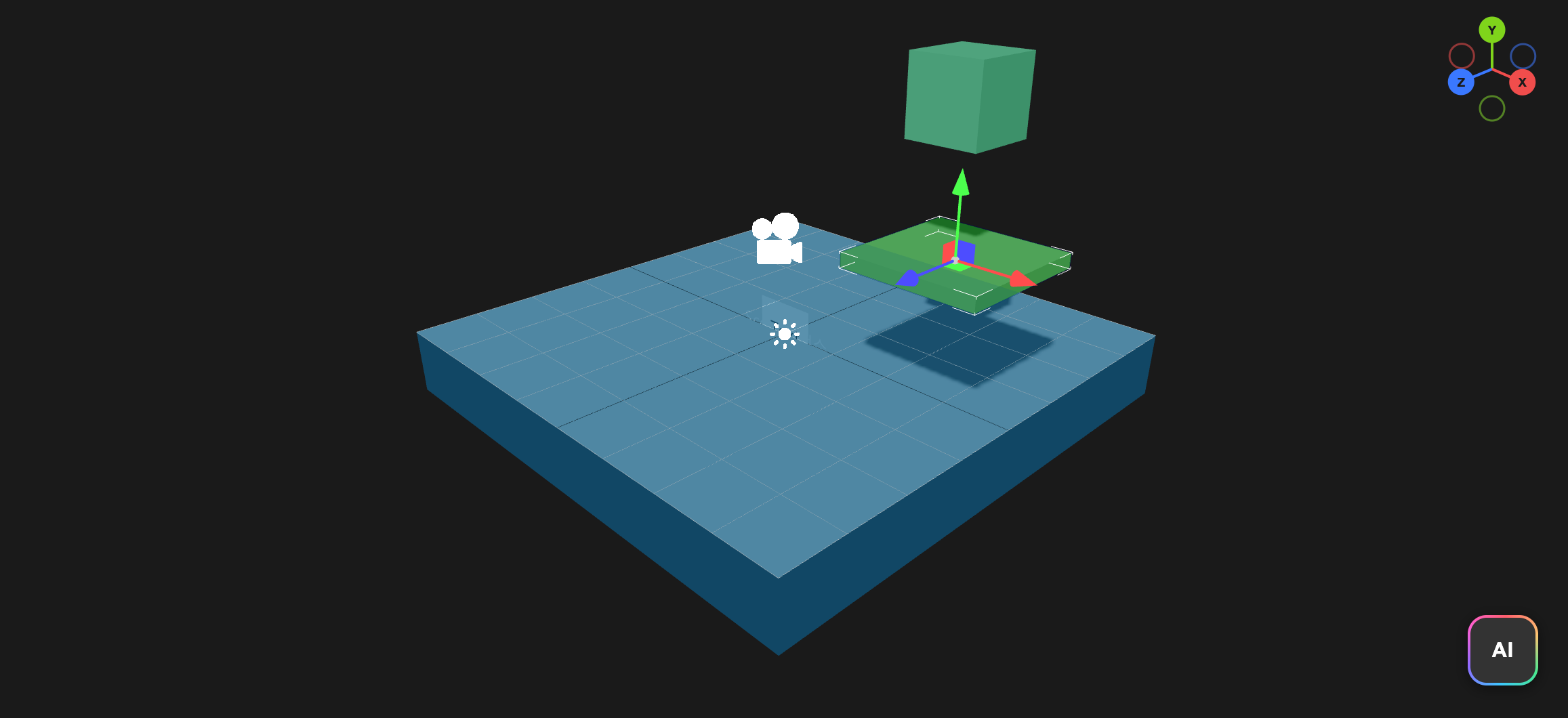
With Physics Edit Mode on, the collision shapes of all entities are drawn in color (in our test, Plane in blue, Box and Zone in green). With it off, only the selected entity's collision shape is shown. Use it to check at a glance whether collision bounds match the entities.
Left vertical toolbar
| Order | Name | Key | What it does |
|---|---|---|---|
| Top | OasisW logo (main menu) | See "Main menu" below | |
| 1 | Translate | 1 | Translate gizmo |
| 2 | Rotate | 2 | Rotate gizmo |
| 3 | Scale | 3 | Scale gizmo |
| 4 | Resize Element Component | 4 | Resize gizmo for on-screen UI elements |
| 5 | World / Local | L | Toggles the gizmo's coordinate space |
| 6 | Snap | Drag in fixed increments | |
| 7 | Focus | F | Frames the camera on the selected entity |
| 8 | Undo | Ctrl+Z | Undo |
| 9 | Redo | Ctrl+Y | Redo |
| 10 | Publish / Download | Builds and publishing. See Publish your game | |
| 11 | Code Editor | Ctrl+I | Code editor window |
| 12 | Bake Lightmaps | Ctrl+B | Bakes lightmaps |
| 13 | AI Game Builder | Opens and closes the AI panel. See Open the AI panel and send a prompt | |
| Bottom 1 | How do I...? | Ctrl+Space | Help |
| Bottom 2 | Controls | Shift+? | Shortcut list. See Keyboard shortcuts |
| Bottom 3 | Settings | Switches the right panel to SETTINGS |
For how to use the gizmos and Snap·World / Local·Focus, see Move, rotate, and scale entities.
Main menu
This menu opens when you click the OasisW logo at the top of the toolbar. Many of its functions overlap with other buttons.
| Item | What it does |
|---|---|
| Projects, Project Dashboard | The project list; this project's overview screen |
| Scenes | The SCENES window |
| Edit ▸, Entity ▸ | Edit and entity commands. Entity is available only when an entity is selected |
| Launch | Runs the game (⌘ Enter) |
| Code Editor, Bake LightMaps, Publishing, Version Control, Settings | Same as the toolbar buttons with the same names |
| Local File ▸ | New Scene, Save JSON, Load JSON. Saves the scene to, or loads it from, a file on your computer. See "Local File" below |
| Help ▸ | Help |
Local File
These results were checked on 2026-10-30 (1 run).
| Item | Result |
|---|---|
| Save JSON | Downloads the current scene as a .json file, with no confirmation. In our test, physics-1029.moditor.json (24,620 B) was downloaded. It contained the scene settings and the entities (10), but no asset files |
| Load JSON | When you choose a file, the scene is replaced with the file's contents, and the editor is disconnected from the project at the same time. The branch and scene name buttons in the top bar and the project name and ● 실시간 (Live) in the bottom bar disappear, the tab title becomes Editor, and Publish / Download and Code Editor are grayed out. Changes you make in this state are not saved to the project |
| New Scene | Appears to disconnect from the project and open a new scene, like Load JSON Pending Verify the result of New Scene |