Read the plan and work steps
When AI GAME BUILDER receives a prompt, it first shows a plan of what it will do, and when you click 예 (Yes), it carries out the work in several steps. This page explains what to read on the plan confirmation card, what the run checks and automatic checks attached to each step are, and how long the work takes. The final line after the work finishes is covered in Read the last line and the auto-check.
The tests on this page were done in the oasisw.ai editor from 2026-10-26 to 2026-10-29. The AI panel's layout and wording may change.
How the work flows
A single prompt proceeds in the following order.
- When you send a prompt, 보내기 (Send) changes to 중단 (Stop), and
AI가 생각하는 중(AI is thinking) appears. At this point the AI reads the current scene and scripts. - After 20 to 40 seconds, the plan and the
이대로 진행할까요?(Proceed as planned?) card appear (within 20 seconds for 2 small prompts). The button changes back to 보내기, and a씬에 반영할 변경이 없습니다(No changes to apply to the scene) line is added below. This means nothing has changed yet. - Read the plan and click 예.
[확인] 예([Confirm] Yes) is added to the conversation and the work starts. For prompts that make a new game, the number of steps is shown first, like기획 체크 5개 · 단계 3개(5 design checks · 3 steps). - The AI works through the steps in order, from
단계 1/3(Step 1/3) to the last step. Between steps, the AI runs the game for a few seconds to check it. - At the end of each step, a summary and the automatic check result are added.
- When the last step finishes, the line
씬에 반영했습니다 · 엔티티 N개 추가 …(Applied to scene · N entities added …) appears. 중단 changes back to 보내기.
After you click 예, the AI doesn't ask again until the work is done. The only place to change the plan is the card in step 2.
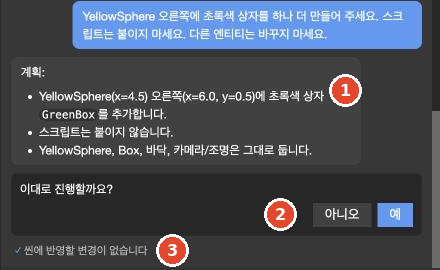
Plan confirmation card
In tests from 2026-10-27 to 2026-10-29, this card appeared for every prompt we sent, including making the first game, continuing a task, fixes, model swaps and color changes (10+ times). The card shows a line saying the AI has checked the current scene, along with a list of things to do. For 1 of 3 prompts that made a new game, only 이대로 진행할까요? appeared, without a plan list.
What to check in the plan list differs a little by the kind of prompt.
| Line to read | Observed example | What to compare |
|---|---|---|
| What it will create or change | "Place 10 yellow stars (Star1–Star10) on the ground" | Whether the counts and names match your prompt |
| Rules and end conditions | "When all 10 are collected, end the game with the message '모두 모았습니다! 클리어!' (All collected! Clear!)" | Whether every rule in your prompt is included, and whether on-screen text is in the language you want |
| Things the AI decided on its own | "Set an angled top-down camera to follow", "Clean up the Box in the default scene" | Whether items that aren't in your prompt are acceptable |
| Cause (fix prompts) | "The scoreText/winText attributes of the star script aren't linked, so …" | Whether the explanation matches the symptom you saw |
| What it will leave as is | "The 10 stars, ground, walls, trees, camera and the rest of the UI stay as they are" | Whether the things that must not be touched are listed |
The line to read most carefully is Things the AI decided on its own. It shows what the AI will fill the gaps in your prompt with. Some things also appear during the work without being listed in the plan. In 2 runs tested on 2026-10-27, perimeter walls and trees that weren't in the plan appeared during the step work.
Yes and No
- 예 (Yes): starts the work according to the plan.
- 아니오 (No): no work is done.
[확인] 아니오([Confirm] No) is added to the conversation, and the AI asks what to change, with something like "Tell me in one line which part you want to change." The scene doesn't change, and the turn ends with씬에 반영할 변경이 없습니다(tested once). Write what you want and send it again, and a new plan appears.
If you don't like the plan, clicking 아니오 and correcting it right away is faster than clicking 예 and fixing things later. Getting to the plan card takes less than a minute, but the work after clicking 예 takes from a few minutes to over 10 minutes. Next time you make a similar game, write that item into the prompt yourself. The principles are in Principles for writing prompts.
The card waits until you answer. Once we clicked 예 late; no work proceeded in the meantime, and the work started after we clicked it (tested once).
In the previous version of the editor, instead of the plan card, a game brief with four items (controls, goal, key objects, assumptions) appeared, and the work continued after the brief without waiting for approval. In 1 run tested on 2026-10-27, after we clicked 예, a line saying "I'll record the game brief first" appeared, but the brief's content wasn't shown in the conversation.
Steps
For prompts that make a new game, after you click 예 the number of steps appears, like 기획 체크 5개 · 단계 3개, and the AI splits the large prompt into several steps on its own. These are the steps we observed when building with the same star-collecting prompt.
| Date | Display | Step names |
|---|---|---|
| 2026-10-26 | 기획 체크 5개 · 단계 4개, 기획 체크 4개 · 단계 4개 | Different in each run |
| 2026-10-27 (1) | 기획 체크 4개 · 단계 3개 | 1/3 Playable basics, 2/3 10 stars and clear … |
| 2026-10-27 (2) | 기획 체크 5개 · 단계 3개 | 1/3 Core play, 2/3 Arena and environment, 3/3 UI and presentation |
| 2026-10-27 (3) | 기획 체크 5개 · 단계 3개 | 1/3 Basic controls and 1 star, 2/3 Placing 10 stars, 3/3 UI, style and effects |
The number of steps and how the work is split vary from run to run, even with the same prompt. For prompts that change an existing scene, such as continuing a task, fixes, model swaps or adding a single entity, the AI went straight to work without showing steps.
Within a step, what the AI has done is added one line at a time, like ✓ Ball 생성 (✓ Ball created), ✓ Star1 ← 레시피 collectible (✓ Star1 ← recipe collectible) and ✓ Plane 물리(static) (✓ Plane physics (static)). Each line is one action. The progress line above the input box (AI가 작업하는 중 · 단계 2/3 … · 도구 18회 · 3분 12초, meaning "AI is working · Step 2/3 … · 18 tool calls · 3 min 12 s") shows the current step, the number of tool calls and the elapsed time. 총 소요 (Total) below the conversation list is the total time the AI has worked in this conversation.
What the AI does is applied to the scene immediately during the work. When a ✓ … 생성 (✓ Created …) line appears, that entity shows up right away in HIERARCHY. The scene you see during the work is an intermediate state, so don't touch the entities the AI is editing until the work finishes. Folders in ASSETS (Scripts, Store, etc.) can also grow during the work.
You may see the names of check scripts such as debugProbe.js and probe.js in the work log. These are files the AI creates briefly for checks. In the previous version of the editor, in 4 of 7 runs these files weren't deleted and remained, repurposed for other features. How to find them is covered in Check what the AI changed.
Run checks
Between steps, the AI runs the game itself to see whether errors occur and whether the controls respond. The work log records how long it ran, like ✓ 게임 실행 2초 (✓ Ran game 2 s). In tests from 2026-10-27 to 2026-10-29, a single run lasted from around 1 second to 3 seconds. Pending Check in the current version whether a small game view appears at the bottom left of the editor during run checks
This check is a run of a few seconds. Behavior that only shows up when you play to the end, such as whether the win message appears on time after all the stars are collected, isn't revealed by this check.
There's a limit on how many times the AI can do things in one prompt. In a test on 2026-10-27, it hit two limits.
- Game run limit: a prompt making the first game used up its
run_game 9회 한도(run_game limit of 9) and wrote that it couldn't do the final check (1 of 2 runs). - Tool call limit: the AI ended with a summary like "I hit the tool call limit and couldn't finish verifying the run, so continue …". One fix prompt only found the cause and ended without fixing anything (1 of 2 runs).
Hitting a limit means the AI didn't finish all its checks or work. In that case, run the game yourself with Launch to check it, and if anything is left undone, ask the AI to continue. How to do this is covered in When the AI stalls, stops short, or loops.
Automatic check after each step
At the end of each step, the AI summarizes what it made in that step in a few lines and adds the automatic check result at the end.
| Display | Meaning |
|---|---|
✓ 자동 점검: 문제 없음 (✓ Auto-check: no issues) | The AI found no problems in that step. |
자동 점검: 문제 3건 — 고치는 중 (Automatic check: 3 issues — fixing) | The AI found problems and is fixing them right away. The lines below are the problems it found. |
자동 점검: 문제 2건 남음 (Automatic check: 2 issues remaining) | The prompt ended with problems the AI couldn't fix. This mostly appears at the end of a prompt. |
The problems found are written as English lines. In a test on 2026-10-27, new lines starting with Visual check: appeared. These seem to be judgments the AI made by looking at the running game. For example, after Visual check: The Ball is tiny and hard to tell apart from the pale background. appeared, the AI switched the style to darker colors and made the ball and stars bigger. In the same run, Visual check: The win message … appears at the start while the score is 0/10 appeared, but this problem wasn't fixed, and the run ended with 문제 2건 남음 (2 issues remaining).
The automatic check doesn't guarantee the result. In some runs, defects remained when we played to the end even though every step had 문제 없음. In 2 runs tested on 2026-10-27, the first game built had 2 defects in each run.
How long it takes
While the AI is working, wait without clicking 중단. Here are the times we measured with the same star-collecting game in the oasisw.ai editor. Times are measured from when you click 예 on the plan card.
| Prompt | Time taken | Basis |
|---|---|---|
| From sending until the plan card appears | About 20 to 40 seconds | 4 runs (2026-10-27 to 2026-10-29) |
| Making a new game | About 8 to 12 minutes | 4 runs (2 on 2026-10-26; 9 min 38 s and 12 min 13 s on 2026-10-27) |
| Continuing to finish an unfinished task | About 2 to 11 minutes | 4 runs |
| Fixing 2–3 defects sent as a numbered list | About 2 to 10 minutes | 8 runs. In 1 of these, nothing was fixed because of the tool call limit |
| Swapping the ball for a store model | About 3 to 9 minutes | 5 runs |
Times vary widely even for the same prompt. If the tool count and time in the progress line keep changing, the AI is working. If no lines are added for a long time, or the same check repeats, see When the AI stalls, stops short, or loops.
Pending Confirm with the development team what happens to the work if you edit the editor by hand or close the editor tab while the AI is working
Next steps
- Read the last line and the auto-check — decide whether the work is finished.
- Check what the AI changed
- When the AI stalls, stops short, or loops
- Principles for writing prompts
- Run with Launch