Open the AI panel and send a prompt
You give AI GAME BUILDER tasks in a single AI panel that opens in the editor. This page explains how to open and close the panel, how to send and stop a prompt, and how to return to a past conversation. What to write in a prompt is covered in Principles for writing prompts.
Before you start
- Open the project and the scene you want the AI to work on. The AI changes the currently open scene.
- It helps to know what the AI changes first. See What AI GAME BUILDER can and can't do.
- If you opened the project with read-only permission, the AI panel's input box is locked. Pending Verify on screen
This task is done only in the AI panel. There's no way to do it by hand instead.
Let the AI do it
Open and close the panel
- Near the bottom of the vertical toolbar on the left, click the AI icon (hover to see
AI Game Builder). The AI GAME BUILDER panel opens in place of the right-hand panel (SETTINGS, ENTITY). You can also open the same panel with the AI button floating at the bottom right of the viewport. - To close it, click × at the top right of the panel or click the AI icon again.
The AI icon toggles the panel open and closed each time you click it. If you click the icon again without noticing the panel is already open, the panel closes, and anything you type goes to the viewport instead of the input box and is handled as shortcuts. In our test, the viewport's view changed (tested once). Before typing a prompt, check that the cursor is in the input box.
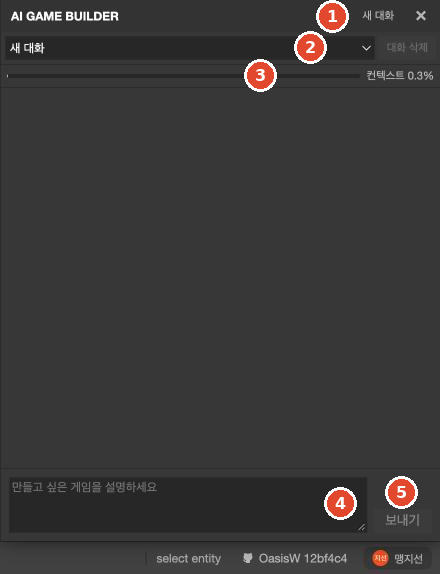
The panel is laid out as follows.
| Location | What's there | What it does |
|---|---|---|
| Top row | AI GAME BUILDER, 새 대화 (New conversation), × | Starts a new conversation, closes the panel |
| Row below | Conversation list, 대화 삭제 (Delete conversation) | Picks a past conversation, deletes the current conversation |
| Below that | 컨텍스트 N% (Context N%) bar, 총 소요 N분 N초 (Total N min N s) | How long the conversation has become, and the total AI working time in this conversation |
| Middle | Conversation history | Your prompts, the AI's replies and the work log (✓ lines, steps, automatic checks) accumulate here |
| Bottom | 만들고 싶은 게임을 설명하세요 (Describe the game you want to make) input box, 보내기 (Send) | Enter and send a prompt |
With the AI panel open, you can still click ▶ Launch in the top bar and ASSET STORE in ASSETS (tested on 2026-10-27, 2 runs).
Send a prompt
- When making a new game, click 새 대화 first. Don't click it when you're fixing the game you just made or continuing a task.
- Type your prompt in the
만들고 싶은 게임을 설명하세요input box. To start a new line, press Shift+Enter. - Press Enter or click 보내기. 보내기 changes to 중단 (Stop), and
AI가 생각하는 중(AI is thinking) appears. - After 20 to 40 seconds, the
이대로 진행할까요?(Proceed as planned?) card appears (within 20 seconds for 2 small prompts that added a single entity). The AI may show its plan as a list of things it will do, or it may only ask a question. Read the plan and click 예 (Yes) to start the work. Click 아니오 (No) and no work is done.
In tests on 2026-10-27, this card appeared for every prompt we sent, including the first prompt, continuing a task, fixes and model swaps (10+ times). The scene doesn't change until you answer the card. After you click 예, the scene and scripts change all at once when the work finishes, and the AI doesn't ask for approval again in between.
If you click 아니오, [확인] 아니오 ([Confirm] No) is added to the conversation, and the AI asks what you want changed. The scene doesn't change, and the turn ends with 씬에 반영할 변경이 없습니다 (No changes to apply to the scene) (2026-10-29, tested once). Write what you want changed and send it again. What to read in the plan is covered in Read the plan and work steps.
While the work is in progress
While the AI works, a progress line appears above the input box.
AI가 작업하는 중 · 단계 2/4 <단계 이름> · 도구 18회 · 3분 12초(AI is working · Step 2/4 <step name> · 18 tool calls · 3 min 12 s.) The step number, the current step's name, the number of times the AI has used tools so far, and the elapsed time update in turn. For small prompts that aren't split into steps, it appeared without a step, like AI가 작업하는 중 · 도구 3회 · 23초 (2026-10-29, 2 runs).
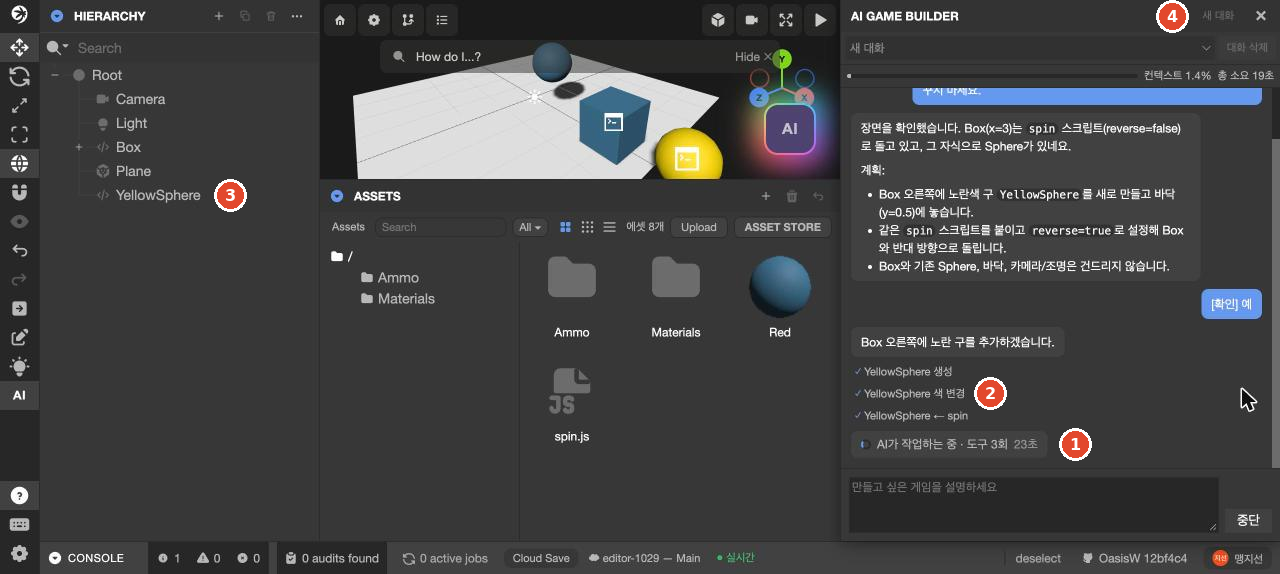
The conversation history fills with the plan, [확인] 예 ([Confirm] Yes), work lines starting with ✓, and short explanations from the AI. What each line means is covered in Read the plan and work steps.
If the progress line stays on AI가 생각하는 중 for a long time, the task may be waiting in a queue. In our test, we sent AI tasks to 3 different projects at once. The later tasks waited at AI가 생각하는 중 for several minutes until the earlier one finished, and 2 of them ended without a summary (tested once). Send AI tasks one at a time.
Time taken (tested on 2026-10-26):
| Prompt | Time taken |
|---|---|
| Making the first game | About 8–10 minutes (2 runs) |
| Continuing an unfinished task | About 2 minutes (1 run) |
| Fixing defects | About 3–8 minutes (3 runs) |
| Swapping the ball for a store model | About 3, 9 and 3 minutes |
| Adding a single entity (2026-10-29) | About 1 minute (1 run), about 2 minutes 20 seconds (1 run; the automatic check also reorganized the scene) |
- While the AI is working, 새 대화, the conversation list and 대화 삭제 are grayed out and can't be clicked. They become available again when the work finishes. Before answering the plan card, they could still be clicked (2026-10-29, tested once).
- Some lines in the work log may appear in English. In the runs we observed, step summaries appeared in Korean.
- The AI's changes are applied to the scene immediately during the work. When a line such as
✓ YellowSphere 생성(✓ Created YellowSphere) appears, that entity shows up right away in HIERARCHY and the viewport, and the action name at the right of the bottom bar changes toAI Turn. Folders the AI creates (Store,Materials, etc.) also appear in ASSETS. Until the work finishes, the scene is in an intermediate state. - When the changes have been applied, the following line appears in the conversation history. The numbers are how many items changed in this task; items with 0 are omitted.
(Applied to scene · 11 entities added · 3 changed · 1 deleted · 2 scripts modified)씬에 반영했습니다 · 엔티티 11개 추가 · 3개 변경 · 1개 삭제 · 스크립트 2개 수정 - When the work finishes, 중단 changes back to 보내기. Usually a summary and an
자동 점검:(Automatic check:) line are added at the end. In 2 runs tested on 2026-10-29, the order was summary →✓ 자동 점검: 문제 없음(✓ Auto-check: no issues) →✓ 씬에 반영했습니다 · …, with the씬에 반영했습니다line last. How to read them is covered in Read the last line and the auto-check. 2 fix prompts ended with the씬에 반영했습니다line and no summary or automatic check line, but when we ran the game, the defects had been fixed.
Stop the work
Click 중단 to stop the work in progress. When we checked once, it stopped as soon as we clicked it. Whether the changes the AI made before stopping remain in the scene: Pending check the scene state right after stopping.
Use 중단 when the AI keeps repeating the same check. If lines are still being added, don't click it even if it's taking a long time. What to send after stopping is covered in When the AI stalls, stops short, or loops.
When the AI asks a question first
The AI may send a question before it starts working. A question card then appears at the end of the conversation history. Pending Check the question card on screen — the description below is not yet verified on screen
- Choices appear as numbered buttons, and the choice the AI recommends is marked (추천) (Recommended).
- If there's one question, the answer is sent as soon as you click a button. If there are several, pick an answer for each one, then click 답 보내기 (Send answers).
- For an answer that isn't among the choices, type it in the 직접 입력… (Type your own…) field.
- Click 알아서 해 (You decide) to send the recommended choices as your answers.
- Answering a question card also sends a prompt to the AI.
Return to a past conversation
- Open the conversation list near the top of the panel. Each title is the beginning of that conversation's first prompt.
- Pick the conversation to continue. Its history appears again, and your next prompt continues that conversation.
The conversation list belongs to the project, not the scene. If you open another scene, you see the same list, and the conversation you last viewed is still open. So when you start a new game in another scene, click 새 대화 first.
When you click 새 대화, a 새 대화 entry appears at the top of the list, the conversation history is cleared, and 대화 삭제 is grayed out. When you send a prompt, the first prompt becomes the conversation's title. If you clicked 새 대화 by mistake, pick the original conversation from the list. In our test, the unused 새 대화 disappeared from the list when we picked the original conversation (tested once).
If you close the editor tab during the work
AI work runs separately from the editor tab. In a test on 2026-10-29, we reloaded the editor tab right after clicking 예. The reopened AI panel still showed the progress line and 중단, and the work ran to completion (tested once). When we closed the tab and reopened it 1 minute later, the work had already finished, the result was in the scene, and the completion summary and automatic check line were in the conversation (tested once).
We haven't tested what happens if the computer goes to sleep or the network drops. In the previous version of the editor, there was one observation where the browser lost its connection during AI work, a network error appeared, and that prompt did not proceed.
If you edit by hand during the work
You can edit the editor by hand while the AI is working. In a test on 2026-10-29 (tested once), while the AI was changing the color, size and height of RedBall, we changed the following two things by hand.
| What we changed by hand | After the AI work finished |
|---|---|
The name of an entity the AI didn't touch (GreenBox → GreenHand) | Kept |
Position X of the entity the AI was editing (7.5 → 12) | Reverted to 7.5. It appears that when the AI changed the height (Y), it overwrote the whole position based on the values at the start of the work |
So while the AI is working, don't change by hand the entities the AI is editing. If something needs fixing, fix it after the work finishes.
Check the result
- Check that the work has finished and 중단 has changed back to 보내기.
- Read the last line and the summary just above it. If the summary says something like "couldn't finish", the work is incomplete.
- Close the AI panel with × and run the game with ▶ Launch. How to run it is covered in Run with Launch.
Troubleshooting
| Symptom | Cause | Solution |
|---|---|---|
| The AI panel isn't visible | The panel is closed | Click AI in the vertical toolbar on the left |
| You sent a prompt, but the work didn't start and the button is back to 보내기 | You haven't answered the 이대로 진행할까요? card | Find the card in the conversation history and click 예 |
| A past conversation isn't visible | A 새 대화 is open | Pick it from the conversation list. The title is the beginning of the first prompt |
The conversation list has only one 새 대화 and no past conversations | The conversation list failed to load | Reload the editor tab. In our test, the original conversation reopened after reloading (tested once) |
| You typed a prompt, but the input box is empty and the viewport's view changed | What you typed while the AI panel was closed went in as shortcuts | Open the panel with AI, click the input box, and type again |
The progress line has stayed on AI가 생각하는 중 for several minutes | It may be waiting for another AI task to finish | Check whether an AI task is running in another tab. Once that finished, the work continued (tested once) |
| You can't click 새 대화 or the conversation list | Work is in progress | They become available again when the work finishes and 보내기 comes back |
The input box shows 읽기 전용 권한입니다. (You have read-only access.) Pending Verify on screen | You don't have edit permission for this project | Ask the project owner for edit permission |
The input box shows 대화 기록을 불러오지 못했습니다. 패널을 닫았다 다시 여세요. (Couldn't load the conversation history. Close the panel and open it again.) Pending Verify on screen | The conversation history failed to load | As the message says, close the panel with × and reopen it with AI |
| The button is back to 보내기, but there's no final summary | The work stopped partway, or it finished without a summary | If there's a 씬에 반영했습니다 line, check the result first with ▶ Launch. If that line is missing too, send the prompt from When the AI stalls, stops short, or loops in the same conversation |