How on-screen text and buttons are structured
UI that sits on top of the game screen, such as scores, messages and buttons, is built by placing entities with an Element component under an entity with a Screen component. This page explains how the two components relate and how positions are set. The steps for building them are in Change score and message text and Make a button.
Screen and Element
| Component | Attached to | What it does |
|---|---|---|
| SCREEN | The top entity of a UI group (e.g. 2D Screen) | Whether the UI sticks to the screen or sits in 3D space, and how the UI stretches when the screen size changes |
| ELEMENT | Each entity under the Screen | One of text (Text), image (Image) or empty group (Group). Position, size and reference point |
| BUTTON | An entity with an Image Element | Receives presses and changes color on hover and press |
An Element is drawn on screen only if it is under a Screen. If you create it with HIERARCHY + → User Interface, this structure is set up automatically. The menu contains 2D Screen, 3D Screen, Button, Layout Group, Layout Child, Group Element, Text Element, Image Element, Scrollbar and Scroll View.
2D Screen and 3D Screen
The Screen Space field of SCREEN distinguishes the two. It is on when you create a 2D Screen.
- Screen Space on: sticks to the screen regardless of the camera. Use it for scores and buttons.
- Screen Space off (3D Screen): becomes a panel placed at a spot in the scene. Use it for name tags above heads or in-game signs. Pending Test 3D Screen
Fitting the screen size
The SCREEN fields of a new 2D Screen are as follows (checked on 2026-10-29).
| Field | Default | Meaning |
|---|---|---|
| Ref Resolution | 1280 × 720 | Reference screen size the UI is designed for |
| Scale Mode | Blend | How the UI stretches when the actual screen differs from the reference. None or Blend |
| Scale Blend | 0.5 | Whether to fit width or height (0 = width, 1 = height) |
| Priority | 0 | Draw order when there are several Screens |
Scale factor tests
On 2026-10-29 we read the Screen's scale factor in a launched game window (1920 × 854) (1 run).
| Setting | Scale factor | Meaning |
|---|---|---|
None | 1 | Reference pixels as-is regardless of screen size. The UI looks small on large screens |
Blend, Scale Blend 0 | 1.5 | Fits the width ratio (1920 ÷ 1280) |
Blend, Scale Blend 1 | 1.186 | Fits the height ratio (854 ÷ 720) |
Blend, Scale Blend 0.5 (default) | 1.334 | Between the two ratios (geometric mean) |
If text gets cut off on tall screens such as phones, move Scale Blend toward 0 (width-based). Pending Test on a phone in portrait
Positioning: Anchor and Pivot
An Element's position is set by which point of the parent area it attaches to (Anchor) and which point of itself lines up with that spot (Pivot). Both are 0–1 ratios. 0, 0 is the bottom left and 1, 1 is the top right.
- A new Element is created in the center of the screen with Preset
Center Anchor & Pivot(all four Anchor values0.5, Pivot0.5, 0.5). - Choosing
Top Left Anchor & Pivotin Preset attaches it to the top-left corner. Use this for text that sits in a corner, like a score. The distance from the corner stays the same when the screen size changes. - Choosing
Stretchfills the parent area. Use it for semi-transparent background panels.
In our tests, setting a Text's Anchor to 0, 1, 0, 1 and Pivot to 0, 1 (= Top Left Anchor & Pivot) and its Position to 20, -20 placed the text slightly in from the top-left corner of the screen.
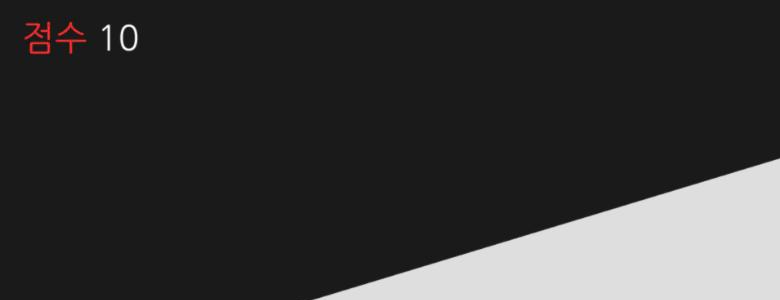
점수 (Score) is colored with Enable MarkupDraw order and input
- Under the same Screen, the Element lower in HIERARCHY is drawn on top. In our tests, a
Buttoncreated later covered aTextcreated earlier (1 run). - To receive presses, the Element's Use Input must be on. It is on when you create a Button.
- UI is drawn on the
UIlayer. The camera's Layers must includeUIfor it to be visible.
UI in games made by the AI
All 7 games the AI made in the contest editor displayed scores with this structure (Text Element under a Screen), and none had UI built with HTML/CSS. To change the text, see Change score and message text. Pending Recheck with 3 AI games on the current version