Add sound
To add sound effects or background music to a game, upload the sound file as an asset, add a Sound component to the entity that plays it, and connect the file to a slot in that component. This page shows how to play a sound when the game starts and how to play a sound when objects collide.
The tests on this page were done on 2026-10-29 in the oasisw.ai editor (version shown as OasisW 7e2aa65, macOS Chrome) using the project from Add collision. Results were checked by reading the slots' playback state and play count in the game started with Launch, and the collision sound was also checked by ear. Behavior without a separate note was tested once.
Before you start
- You need a sound file. The tests used a short 0.35-second sound effect (
hit.wav). Like fonts, each sound file has its own license terms, so first check that it may be included in a game you publish. - Playing a sound on collision builds on Receive collision events. The entity that plays the sound needs Collision and Rigid Body.
Do it in the editor
1. Upload the sound file
Click Upload at the top right of ASSETS and choose the sound file. In our tests, hit.wav appeared with a music-note icon in the currently open folder. Unlike fonts, no separate folder was created.
2. Add a Sound component
- Select the entity that will play the sound in HIERARCHY. In our tests, we chose the falling
Box. - Click + ADD COMPONENT → Audio → Sound.
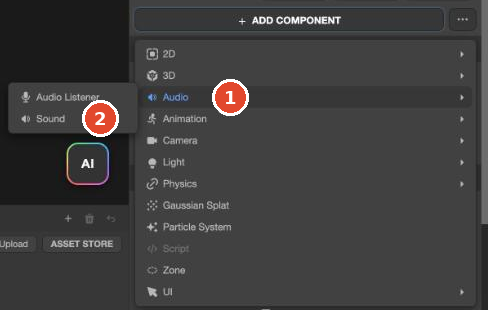
The SOUND section is added, with one empty slot, Slot 1, below it. The slot's Asset is initially Empty.
3. Connect the sound to a slot
- Drag the sound file from ASSETS onto the slot's Asset.
Emptychanges to the file name. - Change the slot's Name to something easy to recognize. Scripts pick the sound by this name. In our tests, we changed it to
hit. - To play the sound as soon as the game starts, turn on Auto Play. To restart it from the beginning when it ends, like background music, also turn on Loop.
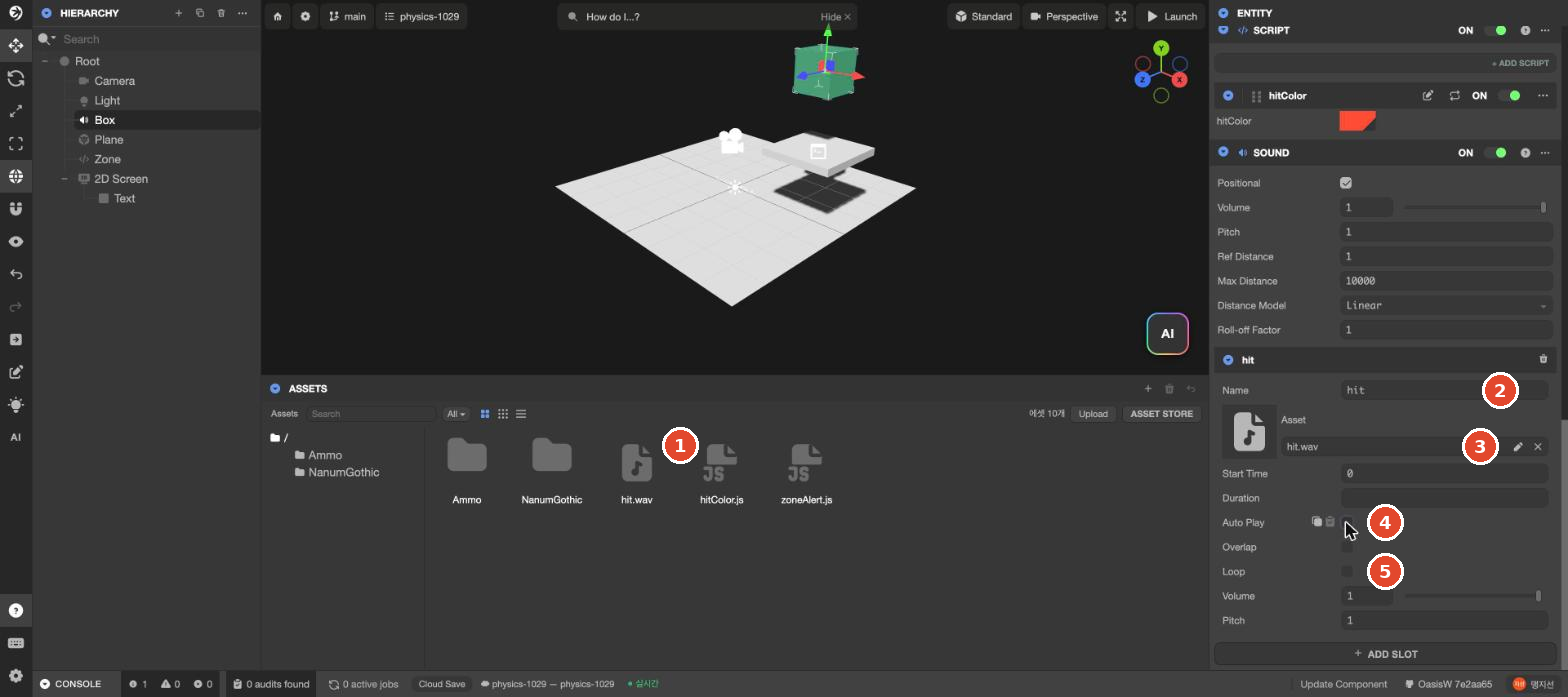
With Auto Play and Loop on, after Launch the slot was still playing and producing an audio signal 3 seconds after the game started. With both turned off, no sound plays on its own during the game.
Main SOUND fields
| Scope | Field | Meaning |
|---|---|---|
| Whole component | Positional | On by default. When on, the volume changes with the distance between the listening position and the entity. See "Volume by distance" below |
| Volume, Pitch | Volume and pitch of all slots in the component (default 1) | |
| Per slot | Name | Name scripts use to pick the sound |
| Asset | Sound file to play | |
| Auto Play | Plays automatically when the game starts | |
| Loop | Plays again from the beginning when it ends | |
| Overlap | Whether a play command received during playback plays on top. When off (default), it cuts the previous sound and restarts from the beginning. In our tests, playing twice 0.08 seconds apart left 1 instance playing at once when off and 2 when on |
Volume by distance
In a launched game, we played the same sound at different distances and read the output signal level (peak) (2026-10-29, 1 run each).
| Setting | 1m | 10m | 100m (or 19m) |
|---|---|---|---|
Default (Max Distance 10000, Linear) | 0.299 | 0.299 | 0.296 (100m) |
Max Distance 20 | 0.299 | 0.157 | 0.016 (19m) |
By default, Max Distance is 10000 meters, so the volume barely drops over in-game distances. To make sounds quieter with distance, reduce Max Distance to suit the size of your game (e.g. 20). With Linear, the volume stays the same up to Ref Distance (1) and becomes nearly inaudible at Max Distance.
The camera in a new scene has no Audio Listener. The tests above measured distance from the origin (0, 0, 0) without an Audio Listener. To listen from a camera or character, add + ADD COMPONENT → Audio → Audio Listener to that entity. In our tests, with an entity carrying an Audio Listener placed at X 19, a sound at the same spot (X 19) was loud at 0.423, and a sound at the origin was quiet at 0.016 (Max Distance 20). The listening point had moved to the Audio Listener.
If you have more than one sound, create more slots with + ADD SLOT and give each slot its own name and file.
4. Play a sound on collision
To play a sound when you want, play it from a script by slot name. The script below plays the hit slot each time the entity collides with something. To create and attach a script, see Create and attach a new script.
var PlayHit = ow.createScript('playHit');

// Slot name of the sound to play
PlayHit.attributes.add('slotName', {
    type: 'string',
    default: 'hit',
    description: 'Slot name in the SOUND section'
});

PlayHit.prototype.initialize = function () {
    this.entity.collision.on('collisionstart', this.onHit, this);
};

PlayHit.prototype.onHit = function () {
    this.entity.sound.play(this.slotName);
};- Attach this script (
playHit.js) to the entity with the Sound component. - Check that slotName in the SCRIPT section matches the slot name you set in step 3. If it differs, no sound plays.
- Turn off the slot's Auto Play and Loop.
- Check with ▶ Launch.
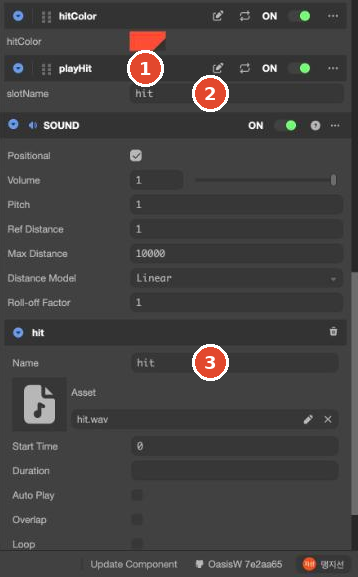
In our tests, dropping the Box from height 4 played the sound twice: when it first hit the floor and when it bounced once and landed again (2 times in both of 2 runs). If you don't want a sound on every bounce, use once instead of on to receive only the first one. The difference is explained in Receive collision events.
Things to check
- If there's no sound, first check that your device's sound is on, that the slot's Asset isn't
Empty, and that the slot name in the script is correct. - Browsers usually block sound until the user clicks the page once. In our test environment, an audio signal was produced even before clicking, but we did not check whether that holds for someone opening a published game for the first time. It's safer to have the player click once on a start screen before starting background music. Pending Test whether Auto Play sound plays in a browser opening the public URL for the first time
Let the AI do it
Example prompt:
Using hit.wav from ASSETS, play a sound effect every time the box hits the floor.
Put the sound in a slot of the box's Sound component, and name the slot hit.
Don't touch anything else.
When it's done, check that the slot in the SOUND section and the slot name in the script match, and listen with Launch. Pending Test Let the AI do it — same prompt 3 times