Change script attribute values
Scripts have values you can change in the editor without editing code. These values are called script attributes. Many settings in AI-generated games, such as the ball's speed, the number of stars to collect and the victory message, are stored as attributes. This page explains how to find and change attribute values, and how the changed values take effect in the game.
The tests on this page were done on 2026-10-29 in the oasisw.ai editor (macOS Chrome) with a star-collecting game made by the AI (tut-1027-3). After changing and checking each value, we restored the original.
Before you start
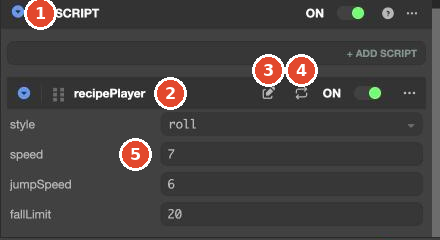
- Attributes are in the ENTITY panel of the entity the script is attached to, inside the SCRIPT component. In HIERARCHY, entities with a
</>icon before the name have scripts attached. - If you don't know which script is attached to which entity, turn on Script Name under ▾ in the HIERARCHY search and search. How to do this is in HIERARCHY panel.
Do it in the editor
1. Find the attribute
- Select an entity in HIERARCHY, for example
Ball. - Scroll down the ENTITY panel on the right to find the SCRIPT component.
- Inside SCRIPT, each attached script has a name row (for example,
recipePlayer), with attribute names and value fields below it.
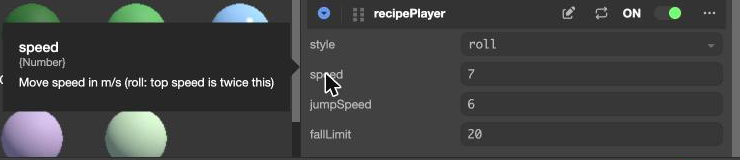
Hover over an attribute name to see its name, value type ({Number}, etc.) and description. The description comes from the script code. The AI-generated scripts contained English descriptions.
2. Change the value
- Click the value field and enter a new value.
- Press Tab or Enter in a number field, or Enter in a text field.
Update Componentappears at the right of the bottom bar. - Press Esc to leave the field.
Some attributes are chosen from a list. The style attribute of recipePlayer was a field where you choose one of roll, platformer, topdown and runner.
3. Check with Launch
Changed values are saved immediately and used in the game from the next Launch. In our test, we changed Ball's speed from 7 to 14 and clicked Launch, and speed was 14 in the opened game (1 run). A game tab that's already open has to be refreshed to restart with the changed value. How to run the game is in Run with Launch.
The entity's value wins over the code's default
Attributes are defined in script code with attributes.add, and each attribute has a default value. However, the value the game actually uses is the one in the entity's SCRIPT field.
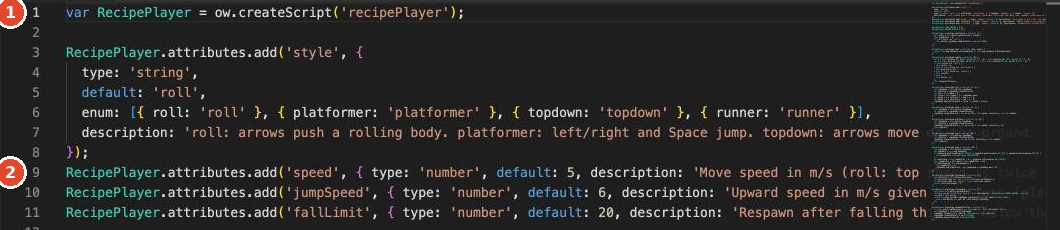
default: 5 for speedIn the recipePlayer.js we tested, the default for speed was 5, but the AI had put 7 in Ball's field. When we changed the field to 14, the game used 14. So when you change a value, edit the entity's field, not the code's default. Editing the code's default doesn't change the field values on entities that already have the script attached. In a test on 2026-10-29, we asked the AI to change the default in spin.js from 90 to 45. The file became 45, but Box and YellowSphere, which already had spin attached, stayed at 90 in the game. The AI reported that "both entities rotate at half speed," which was not true.
Text and names are attributes too
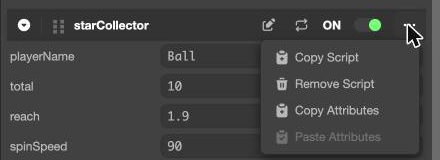
On-screen text and the names of other entities are also often stored as attributes. In the game we tested, the starCollector script on the UI entity had the following attributes.
| Attribute | Value | Purpose |
|---|---|---|
playerName | Ball | Name of the entity that collects stars |
total | 10 | Number of stars to collect |
reach | 1.9 | Distance at which a star is collected |
spinSpeed | 90 | Speed at which stars spin |
winMessage | Clear! All stars collected! | Message shown when all stars are collected |
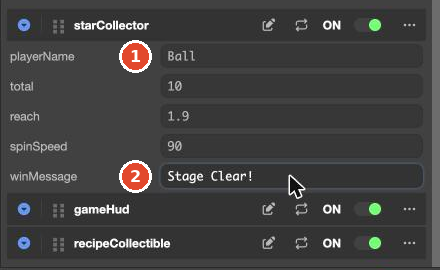
When we changed winMessage to Stage Clear! and clicked Launch, the value in the game was also Stage Clear! (1 run). The text in the editor viewport, however, didn't change. This game appears to take the message from the script attribute and overwrite the text at runtime, rather than using the Text field of the on-screen text entity (the same structure was observed in an earlier version of the editor). So to change the message, edit the script attribute, not the text entity's Text field.
Buttons on the script row
| Button | What it does |
|---|---|
| Pencil (Edit) | Opens the code editor in a new tab and shows that script file |
| Two arrows (Parse) | Rereads the code and updates the attribute list. Use it when you want to apply and check changes right after editing a script. Saving alone often makes new fields appear, so you won't need it often (see Code editor) |
| ON | Turns only this script off and on |
| ⋯ | Copy Script, Remove Script, Copy Attributes, Paste Attributes |
Let the AI do it
Changing a single value is faster by hand. It takes a few seconds, and only the field you change is changed. If you don't know what an attribute controls, you can ask the AI just to explain it. In that case, also tell it not to change anything. How to do this is in "When you only want an explanation" in Send fix prompts.
Pending Send the prompt "Tell me where the attribute value is" 3 times on the current version and record the results
Check the result
- Check that the value in the SCRIPT field has changed.
- Run with Launch and check the changed behavior. Refresh any game tab you have open.
Troubleshooting
| Symptom | Cause | Solution |
|---|---|---|
You changed default in the code, but the game is unchanged | The value in the entity's field is used first | Edit the entity's SCRIPT field |
| You changed the Text field of on-screen text, but the game shows the original message | The script overwrites the message at runtime | Edit the script attribute that holds the message (for example, winMessage) |
| You can't tell what an attribute does from its name | The name is an English abbreviation | Hover over the name to see its description |
| You changed a value, but the open game is unchanged | The game tab is running with the state from before the change | Refresh the game tab or click Launch again |
The fields of a json attribute show 0 or are empty | The editor fields don't show the code's default | If you haven't changed the fields, the code's default is used at runtime. Check with Launch (Define script attributes) |