Add collision
To make an entity fall, collide and come to rest on the floor, add two components: Collision (the collision area) and Rigid Body (the physics body). This page drops the Box in a new scene from the air so it lands on the Plane, and explains what each component does and where the defaults commonly trip you up.
The tests on this page were done on 2026-10-29 in the oasisw.ai editor (version shown as OasisW 7e2aa65, macOS Chrome) with one new project. Each result was checked by reading entity positions every 0.5 seconds in the game started with Launch. Behavior without a separate note was tested once.
What the two components do
| Component | Sets | Without it |
|---|---|---|
| Collision | Shape and size of the area that collides (Type, Half Extents, etc.) | The entity doesn't exist as far as the simulation is concerned |
| Rigid Body | How it moves (Static, Dynamic, Kinematic) and its mass, friction and bounce | Even with Collision, it didn't block other objects. In our tests, turning off the floor's Rigid Body made the box fall through the floor |
Both the falling object and the supporting object need both components. The only difference is the Rigid Body Type.
| Type | Use for |
|---|---|
| Static | Things that don't move (floors, walls). This is the default when you add a Rigid Body |
| Dynamic | Things affected by gravity that get pushed when hit (balls, falling boxes) |
| Kinematic | Things that move by script or animation and push other objects. In our tests, moving a Kinematic box from a script pushed a Dynamic box in front of it (How physics works) |
Before you start
- A new scene contains
Camera,Light,BoxandPlane. This page uses only these four. To create a scene, see Create and switch scenes. - In a new scene, the
BoxhasPosition0, 0.5, 0and thePlanehasScale8, 1, 8. - The basic steps for adding components are in Add and remove components.
Do it in the editor
1. Add Collision to the falling entity
- Select
Boxin HIERARCHY and change itsPositionY to4. This lifts it into the air. - Click + ADD COMPONENT → Physics → Collision.
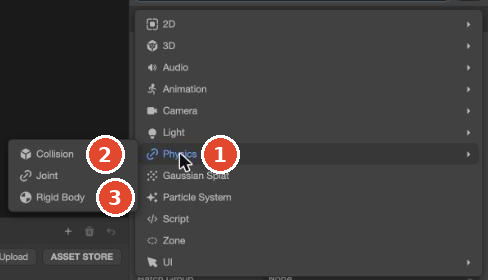
COLLISION is added with Type Box and Half Extents 0.5, 0.5, 0.5. These values exactly fit a Box of size 1. In the viewport, a green outline appears on the entity.
2. Import the physics module (once per project)
In a new project, a red box with Ammo module not found appears below COLLISION. It means the project doesn't have the module used for physics simulation (Ammo) yet.
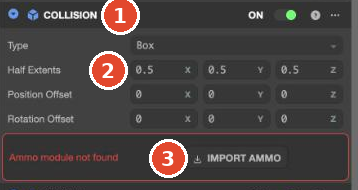
- Click IMPORT AMMO.
- An
Ammofolder (4 assets) appears in ASSETS and the red box disappears.
3. Add Rigid Body and set it to Dynamic
- On the same
Box, click + ADD COMPONENT → Physics → Rigid Body. RIGIDBODY is added at the bottom of the component list. - Confirm that Type is
Static, then open the list and choose Dynamic.
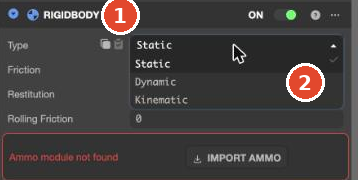
When you switch to Dynamic, more fields appear: Mass (default 1), Linear Damping and Angular Damping (how much movement and rotation slow down), Linear Factor and Angular Factor (how much movement and rotation are allowed per axis), and Gravity Scale (gravity multiplier). Friction and Restitution (bounce) default to 0.5 for both Types.
4. Add them to the supporting entity and fit the collision area
If you Launch without adding anything to the floor, the Box falls through the floor forever (observed: dropping about 70 per second). Add both components to the floor too.
- Select
Planeand add Collision and Rigid Body. The floor doesn't move, so leave the Rigid Body Type at the defaultStatic. - Look at the viewport. Only a small blue box is visible in the middle of the
Plane. That is the current collision area.
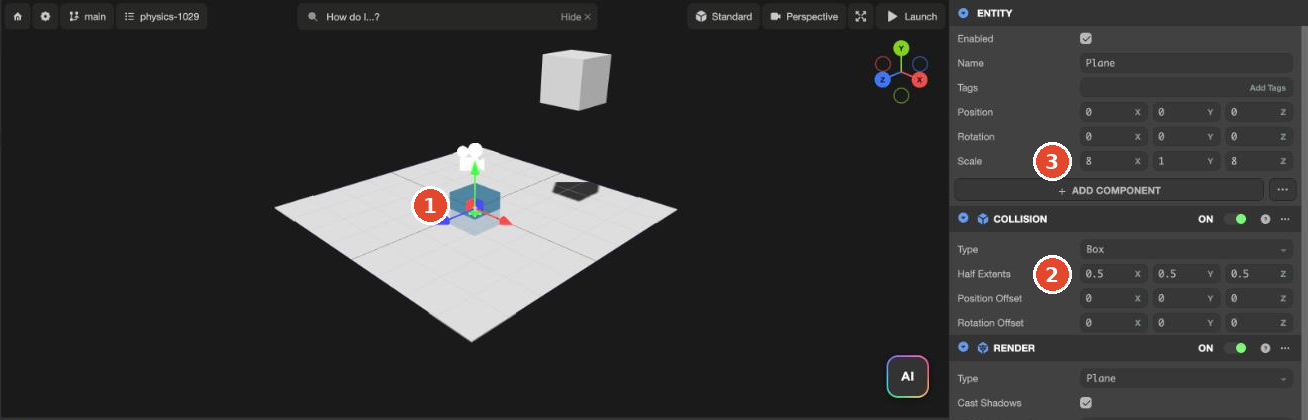
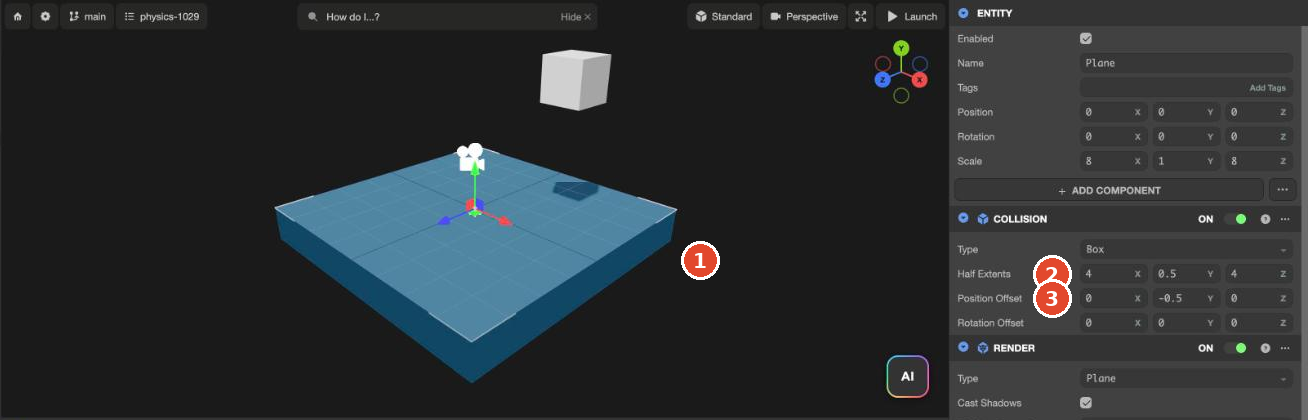
The Plane has Scale 8, 1, 8, so the visible floor is 8×8. But the collision area doesn't grow with Scale, so it covers only 1×1 in the middle. In this state, our tests showed two things.
- Dropping the
Boxin the middle (X 0), it stopped at Y1.00. The top of the collision box is 0.5 above the floor surface, so the box looks like it's floating 0.5 above the floor. - Moving the
Boxto X3and dropping it, it fell through the floor. It's above the visible floor but outside the collision area.
Fit the collision area to the visible floor.
- In the
Plane's COLLISION, change Half Extents to4, 0.5, 4. Half Extents is the length from the center in each direction, so to cover a width of 8 you enter half of it, 4. - Change Position Offset Y to
-0.5. This moves the collision box (height 1) down 0.5 so its top lines up with the floor surface (Y 0).
5. Check with Launch
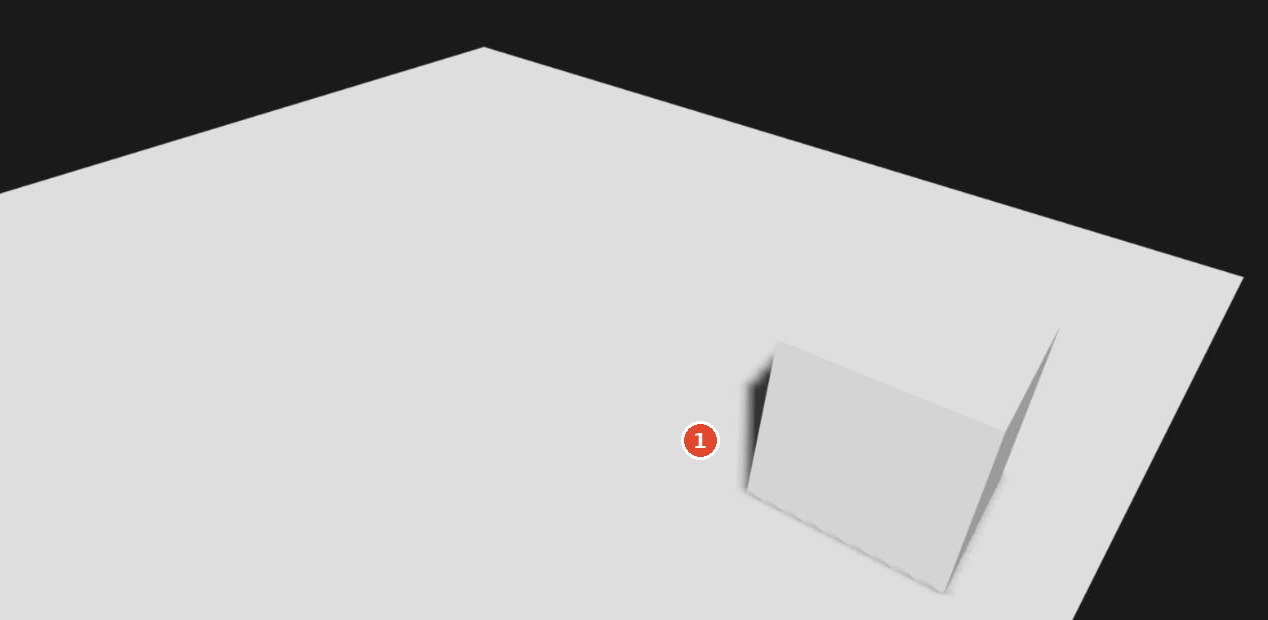
Click Launch. The Box fell from X 3 and stopped on the floor surface (Y 0.50).
Choosing the collision shape
Choose the shape in the Type field of COLLISION. The list has Box, Sphere, Capsule, Cylinder, Mesh, Compound and Cone. The default was Box regardless of the entity's shape (Box even on a sphere). Choose the one closest to the entity's shape, and check that the outline in the viewport overlaps the entity.
The fields change with the Type. Sphere shows Radius; Capsule and Cylinder show Radius, Height and Axis; Mesh shows Convex Hull and the Model Asset and Render Asset fields for choosing a model. The full list of fields is in Rigid Body and Collision properties.
Shapes other than Box don't grow with Scale either. In a test on 2026-10-30, a Dynamic entity with Scale 2, 2, 2 and a Sphere (Radius 0.5) stopped at height 0.5, with half of its visible shape sunk into the floor. A Box (Half Extents 0.5) did the same (1 run each). For a scaled-up entity, also adjust Radius and Height to match its visible size.
Let the AI do it
When the AI makes a game, it adds physics components on its own. A line like ✓ Plane 물리(static) (✓ Plane physics (static)) appears in the work log. When you ask it to add physics to a scene you built by hand, say which entities move and which support them, and also ask it to fit the collision areas.
Make the Box fall from the air and come to rest on the Plane. The Box is a falling object, and the Plane is a floor that doesn't move. Make the Plane's collision area cover the entire visible floor. Don't touch anything else.Pending Send the prompt above 3 times on the current version and record the results (Type, Half Extents, whether Ammo was imported)
Check the result
- There is an
Ammofolder in ASSETS. - Moving entities have Rigid Body Type
Dynamic, and supporting entities haveStatic. - When you select a supporting entity, the blue collision area in the viewport covers its entire visible shape and its top lines up with the surface.
- Launch and check that falling entities stop on the surface. Also try dropping them near the edges.
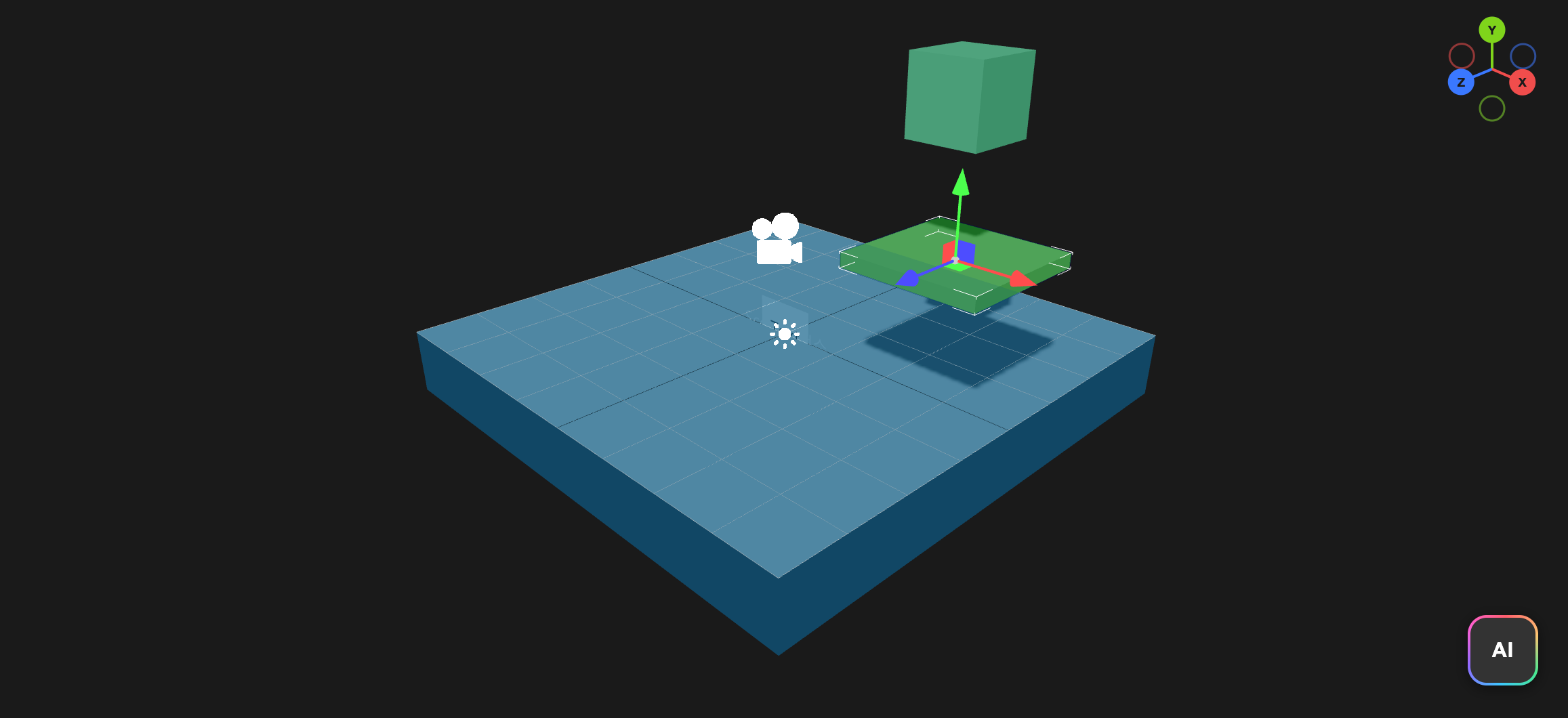
- Turn on Physics Edit Mode in the Cameras list at the top right of the viewport to see every collision area at once as a colored box, including entities you haven't selected (Top bar and left toolbar). Turn it off to see only the selected entity's area.
Troubleshooting
| Symptom | Cause | Fix |
|---|---|---|
| The entity floats in the air after Launch | Ammo is missing, or the Rigid Body Type is Static | Click IMPORT AMMO and change Type to Dynamic |
| The entity falls through the floor forever | The floor has no Collision or Rigid Body, or it's turned off | Add both components to the floor and check that both are ON |
| It stops in the middle but falls through near the edges | The collision area doesn't grow with the entity's Scale | Set Half Extents to half the visible size |
| The entity stops slightly above the floor | The top of the collision box is higher than the floor surface | Lower Position Offset Y by the Half Extents Y (e.g. -0.5) |
| A blue box appears around a round entity | The default Collision Type is Box | Change Type to match the shape, e.g. Sphere |
| It works in the editor's Launch but doesn't move at the public URL | There has been a case where the physics module was missing from the published build (2026-10-26) | See the caution in Publish your game |