Check what the AI changed
After each AI task, read the change report, find the changed entities and assets, and open the scripts. That tells you how far the AI actually went. The AI also changes things you didn't ask for, and it can edit scripts the project shares and change the game in other scenes.
Before you start
- The AI task must be finished, with the 중단 (Stop) button back to the send button. How to read the final line is covered in Read the last line and the auto-check.
- It helps to know first how scenes and the project divide data between them. Script files belong to the project, not to a scene. See Per-scene data and project-shared data for details.
Unrequested changes observed in our tests
These are observations from building with the same star-collecting prompt 7 times in new scenes, and adding a lives rule to two of those runs. Use them to get a sense of what to look for.
| Change | Times observed |
|---|---|
| Put up walls or railings around the edge of the ground | 5 of 7 runs |
| Added a restart on the R key | 1 of 7 runs |
| Added decorative effects (stars bobbing up and down, a blinking win message, rotating light) | 1 of 7 runs |
Didn't delete temporary check scripts (*Probe.js) and repurposed them for other features | 4 of 7 runs |
| Wrote that it had restored a value changed for testing (starting lives set to 1), but actually left it | 1 time |
| Deleted the perimeter walls while adding a lives rule | 2 of 2 runs |
| The automatic check decided the scene was "too dark", changed every material in the scene from a night look to a day look, and raised the camera | 1 of 2 runs |
| Only an explanation was requested, but the automatic check changed the color and size of the timer text | 1 of 3 explanation/question prompts that said not to change anything |
| Edited a script the project shares and broke the game in another scene | 2 cases |
| Asked to add just one entity, but the automatic check moved 6 entities into 3 new groups (2026-10-29) | 1 of 2 small prompts |
These are observations from following Make your first game in 3 new projects on 2026-10-26.
| Change | Times observed |
|---|---|
| Put up walls around the edge of the ground | 2 of 3 first builds |
| In response to a defect-fix prompt, changed the camera height and distance and the star layout, and attached a script that hadn't been attached | 1 of 4 fixes |
| After a defect-fix prompt, something that worked before the fix stopped working (after collecting 1 star, other stars couldn't be collected) | 1 of 4 fixes |
Asked only to change the ball's shape, but deleted and recreated the Ball entity | 2 of 3 times |
| Asked only to change the ball's shape, but edited the already-fixed collect and win scripts again | 2 of 3 times |
In both cases where Ball was deleted and recreated, the controls and star collecting kept working. However, a recreated entity may not keep values you changed by hand. Pending Test whether values changed by hand survive the AI deleting and recreating an entity
Even when the prompt ended with "Leave everything else as it is," the walls were deleted and the mood was changed. Adding this sentence didn't prevent all unrequested changes. We're currently improving the AI's tendency to change things you didn't ask for. Until then, add "Don't touch anything other than what I asked for" to every prompt, and check in the order on this page after the work finishes.
Do it in the editor
Doing this yourself is the reference method, because the AI's explanations can also be wrong. In our tests, the AI once described a blue ball as a "red ball", and a rule it reported as "checked" didn't actually work.
1. Read the change report
- In the AI panel, scroll up from the last line and read this prompt's step summaries from the beginning. Start with the plan just below the prompt you sent. For things the plan says it will "leave as is", check in step 4 and in Check the result that they really are unchanged.
- From the summaries, note separately what was created, what was edited and what was deleted. In the work log, each line such as
✓ Ball 생성(✓ Ball created) is one action the AI took. Some lines appear in English. - Look for phrases like "for testing", "temporary" and "restored". If you find them, check yourself in step 4 and in Check the result whether that value is really back to the original in the game.
- Also look for what the automatic check fixed. A summary that follows
자동 점검: 문제 1건 — 고치는 중(Auto-check: 1 issue — fixing) may describe changes unrelated to your prompt.
In the run where a lives rule was added, five changes could be read from the summary: 3 created (lives text, game over text, a lives manager entity and script), 1 edited (the ball's script), and 1 deleted (the perimeter walls).
Here is a case from a test on 2026-10-29 where the automatic check made changes unrelated to the prompt. We sent "Create one more green box to the right of YellowSphere. Don't attach any scripts. Don't change any other entities."
- The plan said "YellowSphere, Box, the ground, and the camera/lights stay as they are", and the first summary also said "other entities unchanged".
- Below that came
✓ 자동 점검: 문제 1건 — 고치는 중and the English line4 entities sit loose at the scene root …. This flags that entities sit at the top level without a group. - The AI created new
Environment,GameplayandLightinggroups and moved 6 entities under them, includingPlane → Environment,Box → GameplayandCamera → Lighting. - The final lines were
✓ 자동 점검: 문제 없음(✓ Auto-check: no issues) and✓ 씬에 반영했습니다 · 엔티티 4개 추가 · 6개 변경(✓ Applied to scene · 4 entities added · 6 changed). Per the prompt, it should have been 1 added.
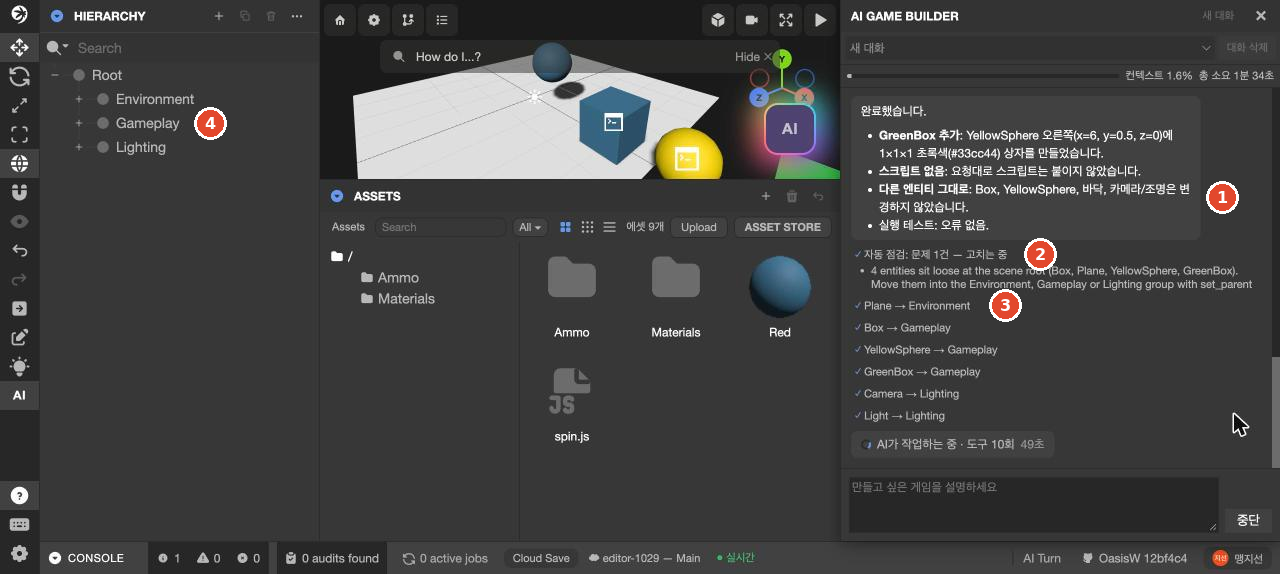
When we checked with Launch, every entity's position in the scene and its rotation behavior were unchanged. The game wasn't affected, but the HIERARCHY structure changed, contrary to the prompt. An entity's Position field values may change because they're now relative to the new parent (see HIERARCHY panel). Some of the grouping didn't match the names, such as the camera going into the Lighting group.
2. Check the changed entities
- In HIERARCHY, click the + in front of the groups the AI created (
Environment,Lighting,Gameplay,UI, etc.) to expand them. Group names vary from run to run. - Type the names you noted in step 1 in the Search field at the top of HIERARCHY to find them. The entity is selected and the right side switches to the ENTITY panel.
- Check for entities you didn't ask for (perimeter walls, railings, etc.).
- Also check that entities reported as deleted are really gone.
An entity with <> in front of its name has a script attached. However, if it has several components, only one icon is shown.
3. Check the changed assets
- In the folder tree on the left of ASSETS, open the root
/. - Set the type filter in ASSETS to
Script. Only the scripts in the currently open folder are shown. - Open the
Scriptsfolder and look the same way. In the runs we tested, scripts were split between the root/(ballMove.js,cameraFollow.js, etc.) and theScriptsfolder (gameUI.js,livesManager.js, etc.). If you look in only one folder, you'll miss some. - Look for files whose names end in
Probe, such asdebugProbe.js,collectProbe.jsandhitProbe.js. These are files the AI created for checks during the work. - If materials were reported as changed, open the
Materialsfolder. Materials the AI creates have names with a color code, likeColor E63946, and are shared by entities of the same color.
4. Open the scripts
- Click a script file in ASSETS. The right panel shows SCRIPT (DOWNLOAD · EDIT), SCRIPTS (attribute names, PARSE) and CODE.
- Read the line numbers and code in CODE. Files the AI created had a Korean
//description line at the top (all 3 files we opened). Use this line to understand what the file does first. - To view the code at a larger size, click EDIT. The code editor opens in a new browser tab. A code editor tab that was already open may not show files the AI just created. In that case, reload that tab.
- Check whether any test values remain. Look at the values that step 1 flagged with "for testing" or "restored".
- Select the entity the script is attached to and also check the attribute field values in the SCRIPT component of the ENTITY panel. In our test, changing the
default:value in the code didn't affect the game; the entity's field value was used (tested once). Check the entity fields first for the values the game actually uses.
5. Check other scenes
Scenes in the same project share script files. If the AI edits a shared script in one scene, the game in other scenes can change too. In our tests, the following happened.
- While working in the 6th scene, the AI changed a shared file. The game in the 4th scene, which had been working, showed the win message as soon as it started.
- In the 7th scene, the AI tried to create a new file but couldn't, because the name clashed with
winBanner.js, left over from the work in the 6th scene. In the same task, the AI edited the shared filesgameUI.jsandrecipeCollectible.js. After that, in the 1st and 2nd scenes, which used those two files, the win message appeared after all the stars were collected, but the count never rose above 0.
If a game you want to keep is in another scene, check it in this order.
- Click the scene name in the top bar to open the SCENES window.
- Click the row of the scene to check to open it.
- Click Launch and play that scene's game from start to finish.
- Return to the scene you were working on.
We haven't found a screen that shows at a glance which scenes use which scripts. Pending Check whether there's a way to see the list of scenes and entities that use a script If you know the names of the files edited in step 3, you can open the SCRIPT component of entities marked <> in another scene's HIERARCHY to see whether they use the same file.
Let the AI do it
Checking the extent of changes is more accurate when you do it yourself with the procedure above than when you leave it to the AI. The AI can read the code and scene and answer, but you have to verify that answer too. Use the AI to ask where things are or to get explanations.
When you only want an explanation, end the prompt with a sentence telling it not to make changes. The following prompt is one we actually sent.
Tell me which object and which field holds the setting that controls how fast the ball rolls. Don't change anything.For this prompt, the AI answered in about 1 minute: the maxSpeed field (value 11) of the ballMove script on the Ball entity. The answer was correct and the scene didn't change. However, in 1 other explanation prompt, the code stayed the same but the automatic check changed the color and size of the timer text. Even after an explanation prompt, read the summary for any changes.
The following prompts haven't been tested yet, so we don't include their wording.
- Asking for a list of files and entities changed by this prompt Pending Add prompt and result after testing
- Asking whether the check files (
*Probe.js) are currently in use Pending Add prompt and result after testing - Asking it to revert only the unrequested changes Pending Add prompt and result after testing
We haven't tested whether adding "Don't edit files used by other scenes" to a prompt prevents edits to shared scripts. Send prompts to fix defects you find in the "what you saw + what you want" format from Send fix prompts.
Check the result
- Click Launch. If a game tab is already open, reload it.
- Play the whole game from start to finish, not just the feature you asked for this time. In a run where a rule was added, the walls disappeared and the screen's mood and the camera changed.
- If step 1 noted any values as "temporary" or "restored", set up the situation where that value matters yourself. For example, if it says starting lives were restored, drop the ball on purpose and see how many lives you start with.
- If a game you want to keep is in another scene, run that scene too, as in step 5.
Troubleshooting
| Symptom | Cause | Solution |
|---|---|---|
| Walls, effects or a restart key you didn't ask for appeared | The AI added them to make the game more convincing | Decide whether to keep them. Prompts asking to remove them haven't been tested yet. Pending Test a removal prompt |
| After adding a rule, the original perimeter walls disappeared | The AI deleted entities that conflicted with the new rule (2 of 2 runs) | Check what was deleted in the summary. Judge whether the walls had to go for the new rule to work |
| The colors of the whole scene or the camera position changed | The automatic check found a visual problem and fixed it | Find and note the changed items in the summary. You can change material colors by hand. Prompts asking to revert haven't been tested yet |
| The win message or game over message is showing right from the start | A temporary test value may remain | Find the value with items 4 and 5 of step 4, and send a fix prompt describing exactly what you saw |
A script whose name ends in Probe remains | The AI may have repurposed a check file for another feature | Read its contents in CODE before deleting it |
| The AI reported that it couldn't create a new script | A file with the same name, left over from work in another scene, exists (1 time) | Check in the summary whether the AI then edited shared files, and check the other scenes as in step 5 |
| A game in another scene that worked yesterday is behaving oddly | The AI edited a shared script in another scene | Find in the summary which shared file changed. Fix prompts for this case haven't been tested yet. If you fix it, run both scenes |
| A file the AI created doesn't appear in the code editor | A code editor tab that was already open didn't show new files | Reload the code editor tab |
| You changed a value in the code, but the game is the same | The entity's SCRIPT field value took precedence over the code's default: | Change it in the attribute field of the ENTITY panel |